This page shows where everything lives in the Refer a Friend admin, so you know which screen to open for each job.
Open the plugin from WooCommerce → Refer a Friend. You need the Administrator or Shop Manager role.
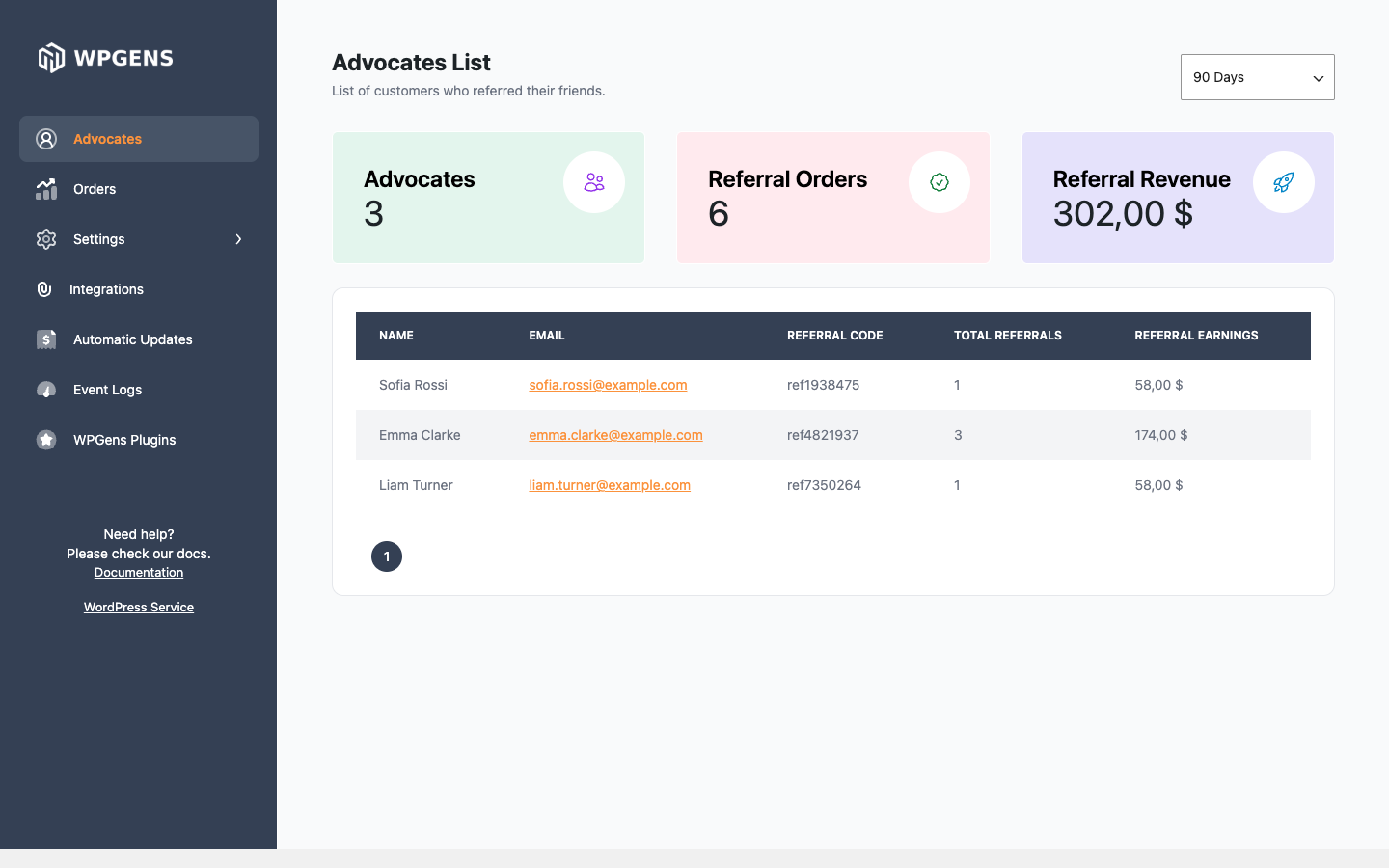
Advocates
A list of customers who have referred at least one friend. It shows each advocate’s referral code, total referrals and the revenue from their referral orders. The cards at the top total the advocates, referral orders and referral revenue for the period you pick, such as the last 90 days.
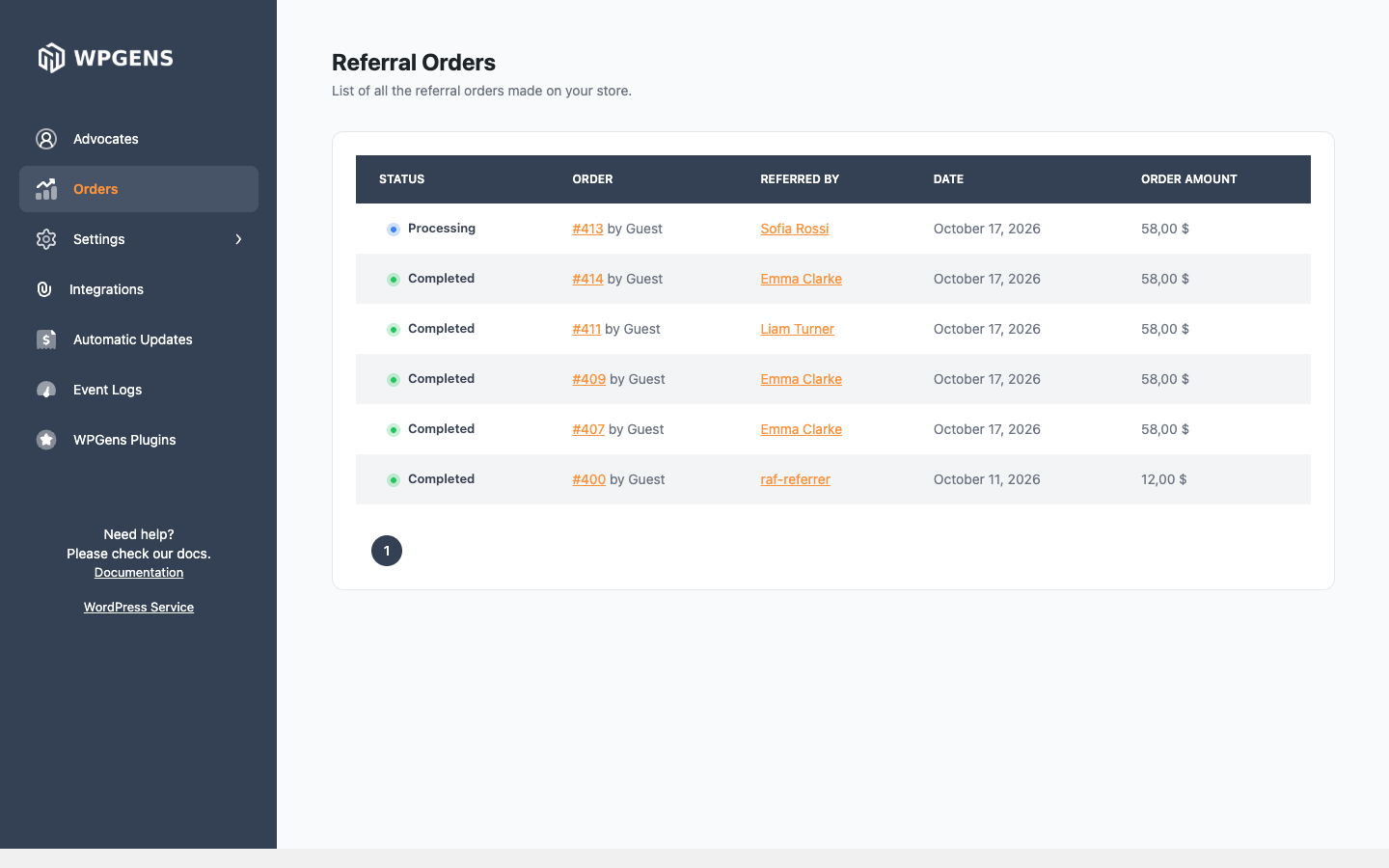
Orders
Every order placed through a referral, with its status, the advocate who referred it, the date and the amount. Click an order number to open it in WooCommerce.
Settings
| Tab | What you set there | Reference |
|---|---|---|
| General Settings | Program on or off, the reward status, referral codes, guest links, hiding links for customers without orders, cookie time and WooCommerce Subscriptions renewals | General settings |
| Advocate Reward | The coupon the advocate gets, per order or per registration | Advocate reward |
| Friend Reward | The friend’s first-purchase discount and the optional coupon after their first order | Friend reward |
| Display Settings | The landing page, the rewards box, My Account, product tab, thank-you page and share buttons | Display settings |
| Email Settings | Turning emails off, share by email, the reminder email and test emails | Email settings |
| Fraud Settings | Which fraud checks run, where alerts go, and the ban list | How fraud protection works |
| Advanced Settings | Different reward amounts and friend coupons for specific advocates | Advocate reward |
Several tabs hide less-used fields behind Show advanced options. For example, Cookie Time and Minimum referral order on General Settings only appear after you click it.
Integrations
Connect Klaviyo, Omnisend, Mailchimp or Brevo so referral codes and links are added to your contacts. Each integration has its own page under Integrations.
Automatic Updates
Enter your licence key to get plugin updates in Plugins. See Install and activate Premium.
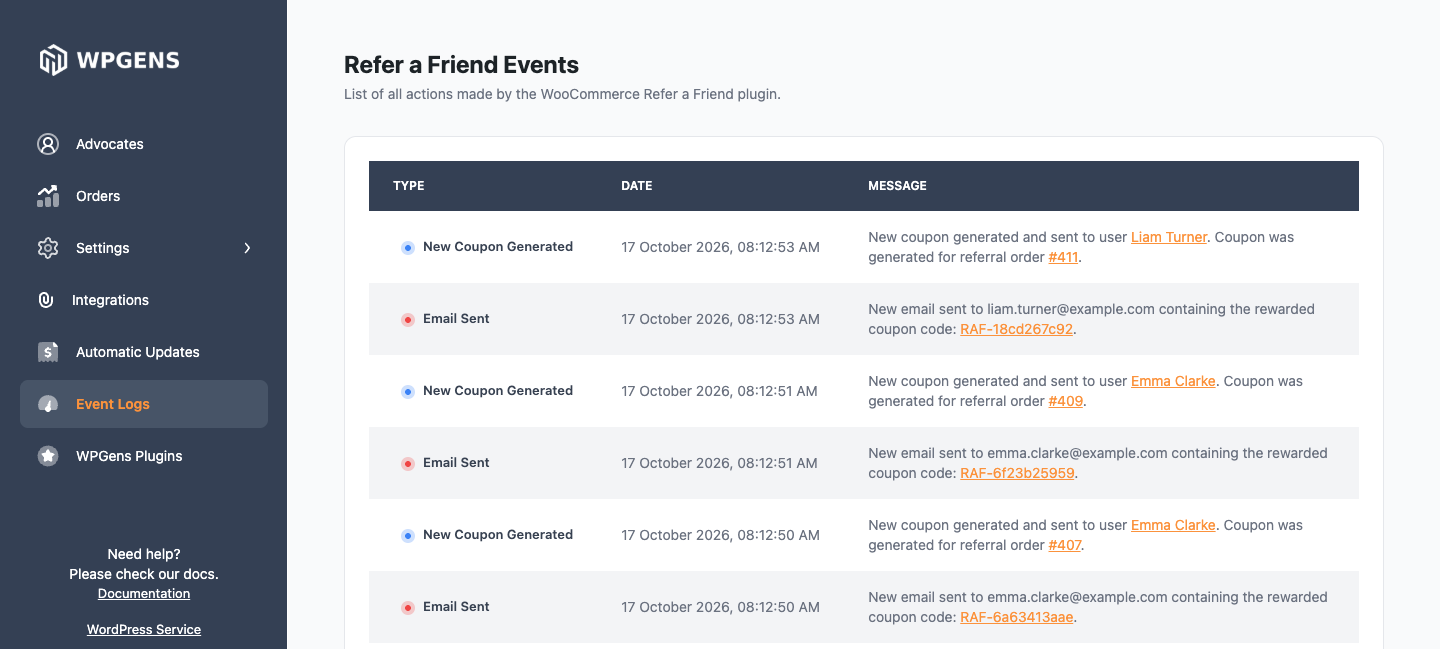
Event Logs
A timeline of what the plugin did: coupons generated, emails sent, referral orders and coupons applied. Use it to confirm that a reward was created and emailed.
Screens the plugin adds to WooCommerce
| Where | What you’ll find |
|---|---|
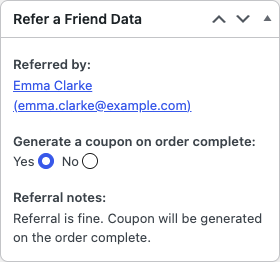
| WooCommerce → Orders → an order | The Refer a Friend Data box: the advocate, whether a coupon will be generated, and the fraud check result. You can also add a referral code to an order by hand. |
| Users → a user profile | The customer’s Refer a friend Link. |
| WooCommerce → Settings → Emails | The four plugin emails: RAF: Advocate Coupon, RAF: Friend Coupon, RAF: Reminder and RAF: Share with a Friend. |
| WooCommerce → Status → Tools | Tools to create missing referral codes, reset referral data, generate missing logs and sync referrals to integrations. |
| WooCommerce → Reports | A Refer a Friend report with referral orders over time. |
| WooCommerce → Status → Logs | Detailed checkout logs under the source wpgens-raf, useful when support asks for them. |