Use Advanced Settings to give chosen advocates a different reward from everyone else. It’s useful for influencers, affiliates, staff or VIP customers. You can change both the coupon they earn and the discount their friends get.
Before you start: the advocate needs a customer account on your store. This doesn’t work for guest advocates.
Add an advocate
- If their friends should get a different discount, create that coupon first under Marketing → Coupons. Set it up like the normal friend coupon: no Allowed emails and no Usage limit per coupon. See Friend reward settings.
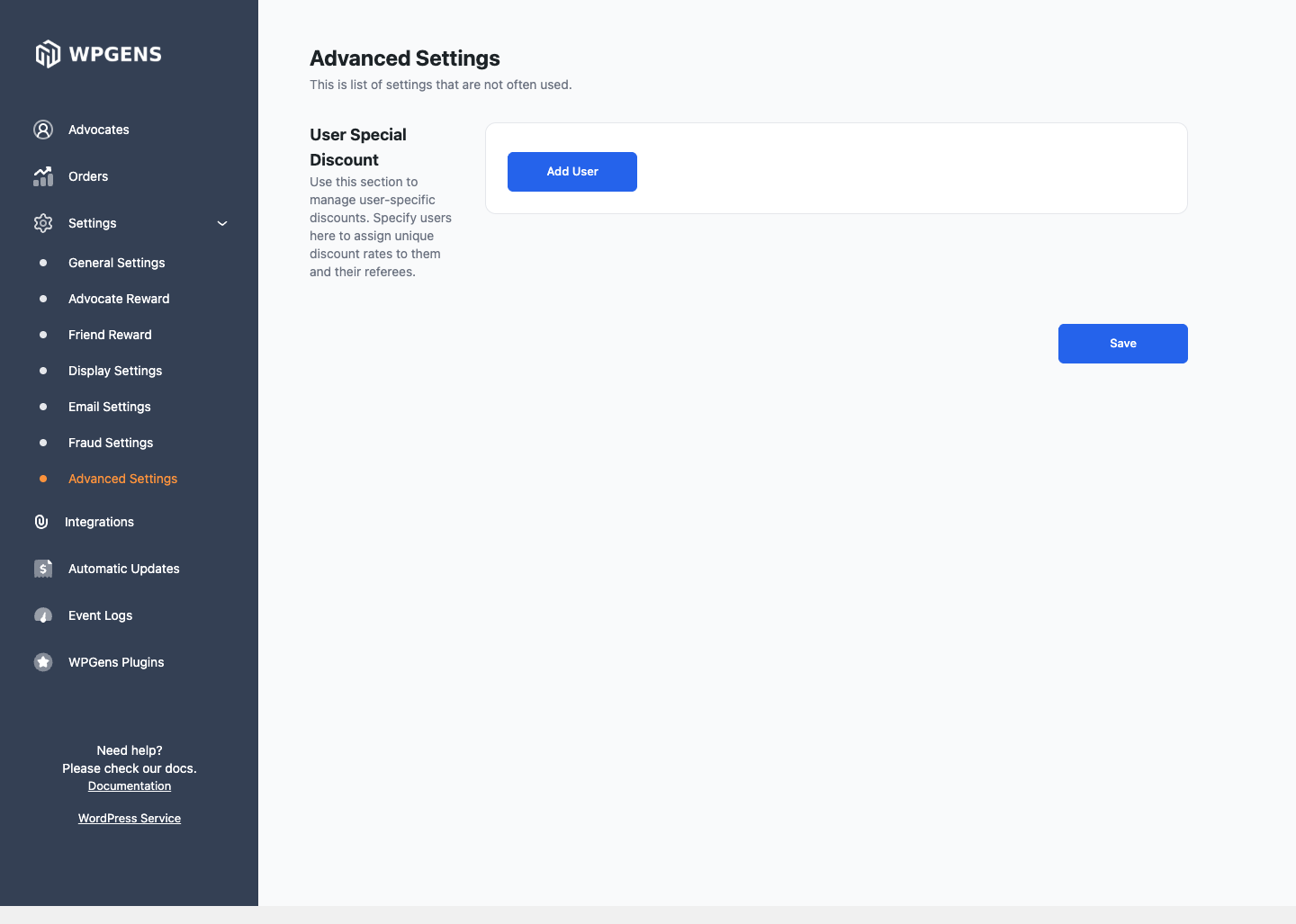
- Go to WooCommerce → Refer a Friend → Settings → Advanced Settings.
- Click Add User.
- Fill in the fields below.
- Click Save.
Click Add User again to add more advocates.
Fields
| Field | What it does | Notes |
|---|---|---|
| Email address | The advocate’s account email. | Must match exactly, including capital letters. |
| Reward Coupon Type | The type of coupon this advocate earns per referral. | Don’t choose Percentage of Friend’s Order or Free Shipping here. In version 4.4.12 they create coupons that don’t work. |
| Reward Coupon Amount | The amount of this advocate’s coupon. | Replaces Coupon Amount from Advocate Reward. |
| Friend Coupon Code | The WooCommerce coupon applied for friends this advocate refers. | Replaces Coupon Code from Friend Reward. Works for links and typed referral codes. |
Everything else, such as restrictions, expiry and Generate Coupon on every X Order, still comes from Advocate Reward.
Check it worked
- Open the advocate’s referral link in a private window and add a product to the cart. The cart should show the discount from Friend Coupon Code.
- Complete the test order and mark it with your reward status.
- Open the newest
RAF-…coupon under Marketing → Coupons. Its type and amount should match Reward Coupon Type and Reward Coupon Amount.