This tutorial walks you through one full referral, from sharing the link to receiving the reward. It takes about 10 minutes and is the quickest way to find a setup problem before your customers do.
Before you start: finish Quick start: launch your referral program. You also need a payment method you can complete without real money, such as Cash on delivery, Direct bank transfer or your gateway’s test mode.
Why testing with your own account fails
The fraud checks exist to stop customers from referring themselves. They compare the friend’s order with earlier orders on your store. A test from your own computer usually matches on at least one of these:
| Check | Why a self-test trips it |
|---|---|
| You check out with an email that already has orders. | |
| IP address | Your advocate and friend orders come from the same internet connection. |
| Phone number | You reuse your own phone number. |
| Billing address | You reuse your own street address. |
| Self-referral | You’re logged in as the advocate, or check out with the advocate’s email. The plugin ignores the referral completely. |
Earlier test orders count too, in almost any status, including Pending payment and Cancelled. Only Failed orders and checkout drafts are ignored.
Step 1: Prepare two identities
You need two people: an advocate and a friend.
- Advocate: a customer account on your store. A test account you create is fine.
- Friend: a new email address, a street address and phone number that have never been used in an order, and a separate browser or a private window.
For the IP address, use one of these:
- Place the friend’s order from a phone on mobile data, not on your Wi-Fi.
- Or temporarily turn on Disable IP check in Settings → Fraud Settings. Turn it off again when you finish.
Don’t use Disable Email check for testing. It also turns off the IP, phone and address checks, and it lets returning customers use referral discounts again and again. If you turn it on, turn it off as soon as you finish.
Step 2: Copy the advocate’s link
- Log in to your store as the advocate.
- Go to My Account → Refer a Friend and copy the Invitation Link. It looks like
https://yourstore.com/?raf=ref4821937. - Log out.
If the tab says the link is available only to customers with orders, either place one normal order as the advocate first or turn off Hide referral link for users without any orders in General Settings.
Step 3: Visit the store as the friend
- Open a private window or a different browser. Don’t log in as an admin or as the advocate in it.
- Paste the advocate’s link and press Enter.
- Add a product to the cart and open the cart.
If First Purchase Discount is on, the discount appears in the cart totals. The coupon code is hidden from the friend.
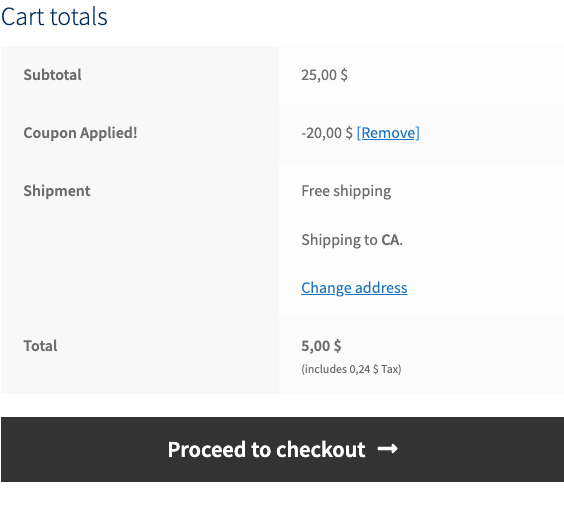
No discount? Go to Friend discount not applied.
Step 4: Place the friend’s order
- Go to checkout and enter the friend’s details: new email, new address, new phone.
- Choose your test payment method and place the order.
Step 5: Check the order in the admin
- In your admin, go to WooCommerce → Orders and open the friend’s order.
- Find the Refer a Friend Data box in the right-hand column.
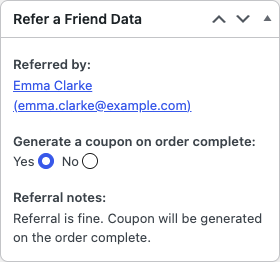
You want to see the advocate under Referred by, Generate a coupon on order complete set to Yes, and the note “Referral is fine. Coupon will be generated on the order complete.”
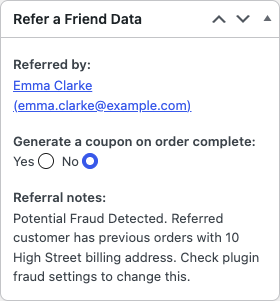
If the note starts with “Potential Fraud Detected”, one of the checks matched. The note says which value matched. Fix your test data and try again, or see How fraud protection works.
If the box says No referral data, the plugin didn’t see the referral at checkout. See the Troubleshooting checklist.
Step 6: Complete the order
- Change the order status to Completed, or to the status set in Generate Referral Reward On.
- Click Update.
Check it worked
- The advocate receives the reward email with a code starting with
RAF-. In WooCommerce → Settings → Emails this email is called RAF: Advocate Coupon. - Marketing → Coupons lists the new
RAF-coupon with the description “Referral coupon for: [advocate email] from order #[number]”. - The advocate sees the coupon under My Account → Refer a Friend → Unused Refer a Friend Coupons.
- WooCommerce → Refer a Friend → Advocates shows the advocate with one referral.
Also test a referral code
If Enable Referral Codes is on, repeat steps 3 to 6 with a new friend identity. This time, don’t use the link. Type the advocate’s code, for example ref4821937, into the coupon field at checkout.
Clean up
- Turn off any fraud check you disabled.
- Delete or trash the test orders, so they don’t trigger the fraud checks in future tests.
- Delete the test
RAF-coupon under Marketing → Coupons if you don’t want the advocate to keep it.