Last updated
With an active licence key, new versions of Refer a Friend Premium appear on your Plugins page, and you can update with one click or let WordPress update it automatically.
1. Add your licence key
- Log in at wpgens.com and go to Purchase History.
- Click View Licenses, then the key icon next to Refer a Friend, and copy the key.
- On your store, go to WooCommerce → Refer a Friend → Automatic Updates.
- Paste the key into Licence Key and click Save.
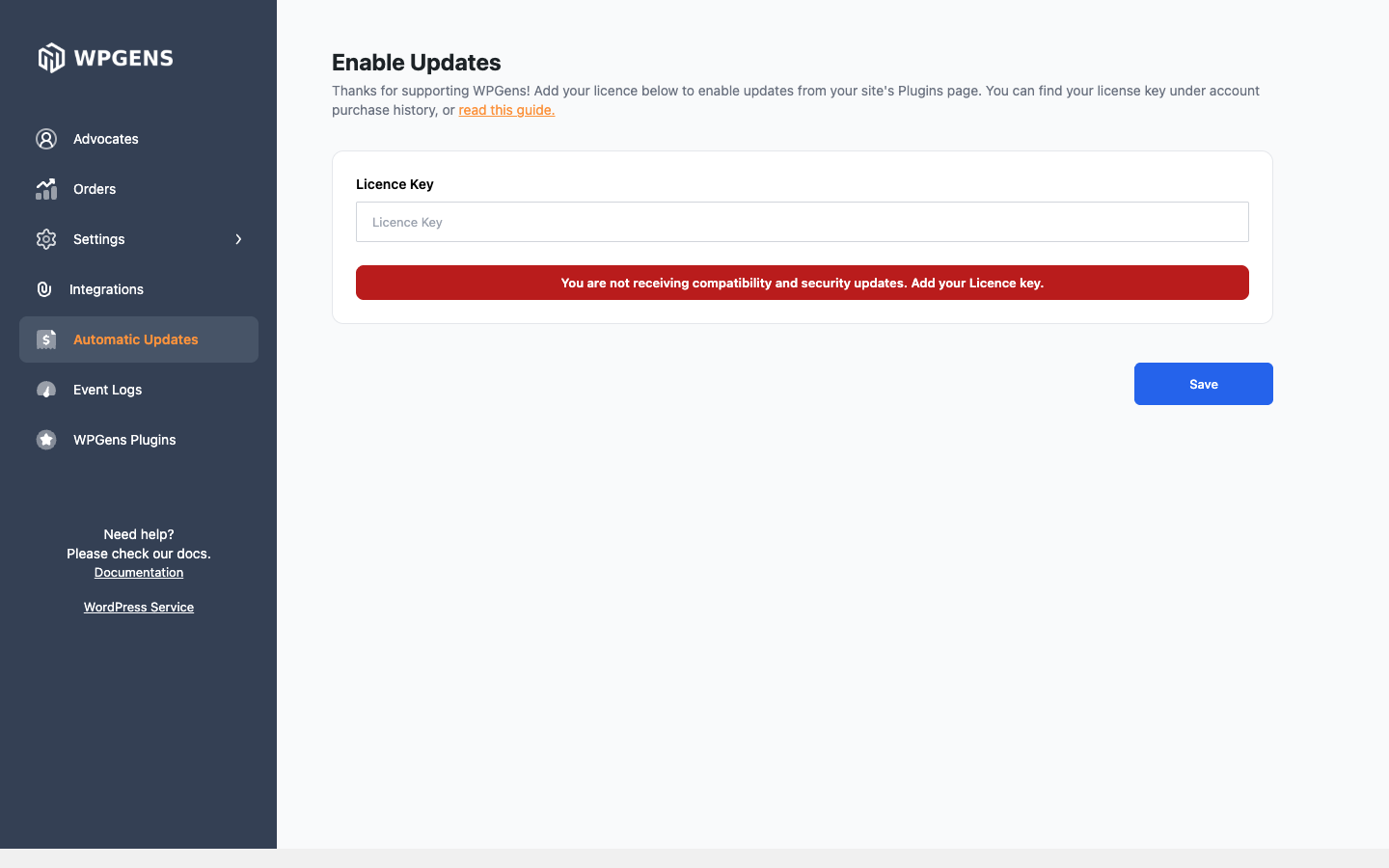
The red “You are not receiving compatibility and security updates” message disappears when the key is active. If you see an error instead, see the licence messages in Install and activate Premium.
2. Update the plugin
New versions show on Dashboard → Updates and on Plugins. Click Update now.
To update without clicking, go to Plugins and click Enable auto-updates next to Refer a Friend Premium.
Before a big update, back up your site, or test it on staging first. Your settings, codes and coupons are kept when the plugin updates.
No update showing?
- WordPress checks for updates about twice a day. Go to Dashboard → Updates and click Check again.
- Check that your licence hasn’t expired, in Purchase History.
- Some hosts and security plugins block update checks to wpgens.com. Ask your host to allow outgoing connections to
wpgens.com. - Still nothing? Update manually.