By the end of this tutorial you’ll have a working referral program: each customer gets a link, friends get 10% off their first order, and the customer who shared the link gets a 10% coupon once that order is completed. You can change the amounts later.
Before you start: install and activate Premium as described in Install and activate Premium. All settings are under WooCommerce → Refer a Friend → Settings. Click Save at the bottom of each screen before moving to the next one.
Step 1: Choose when rewards are created
- Go to WooCommerce → Refer a Friend → Settings → General Settings.
- Check that Disable Referral Program is off.
- Under Generate Referral Reward On, keep Default (Completed) unless your orders never reach Completed. Stores that only sell services or subscriptions often leave orders in Processing. In that case choose Processing.
- Turn on Enable Referral Codes if you want friends to be able to type a code at checkout as well as use a link.
- Click Save.
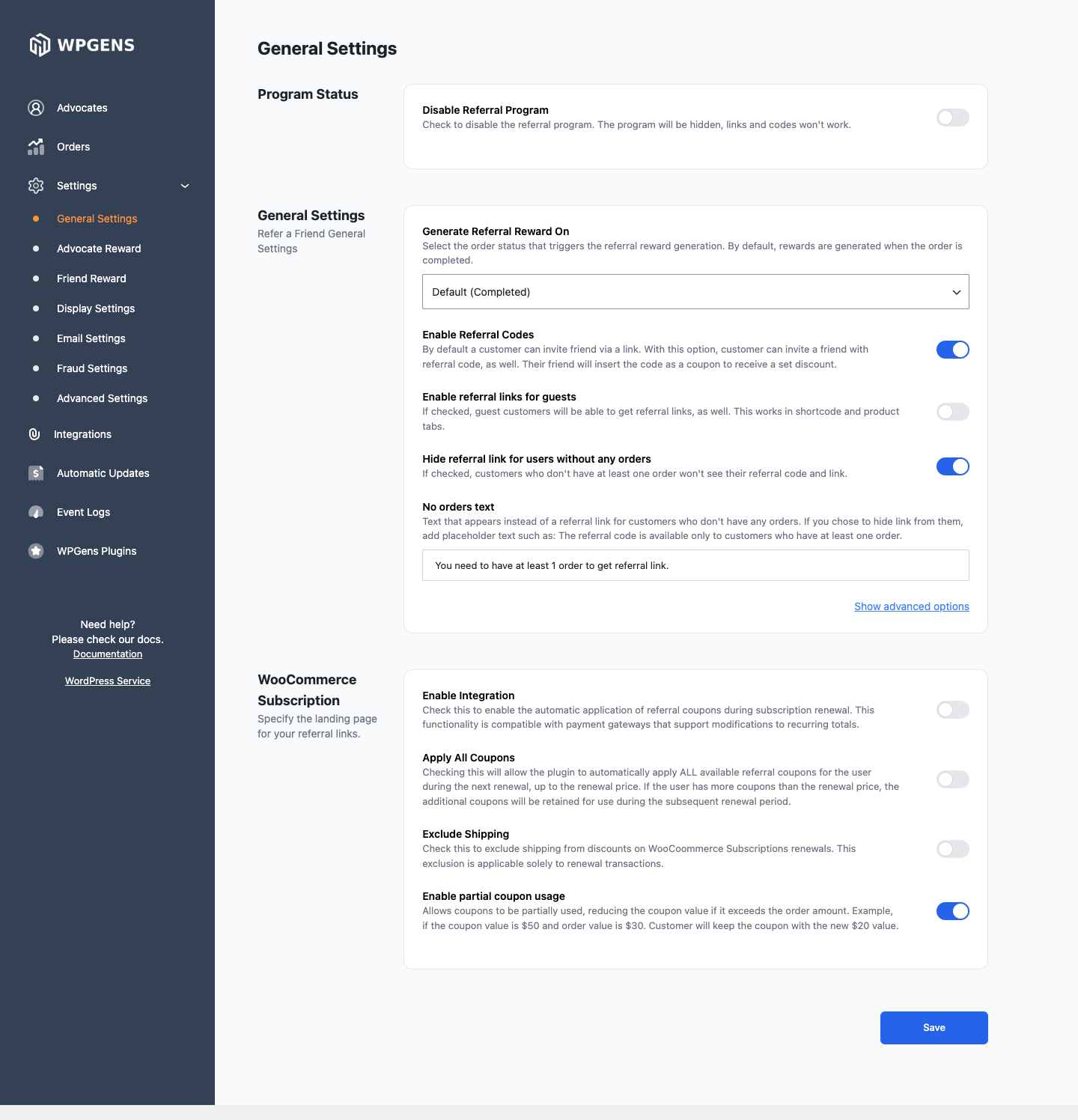
The reward is created only when the friend’s order reaches the status you chose. A paid order that stays in Processing creates nothing while this setting says Completed.
Step 2: Set the advocate’s reward
- Go to Settings → Advocate Reward.
- Make sure Order Based Reward is on.
- Set Coupon type to Percentage Discount and Coupon Amount to
10. - Click Save.
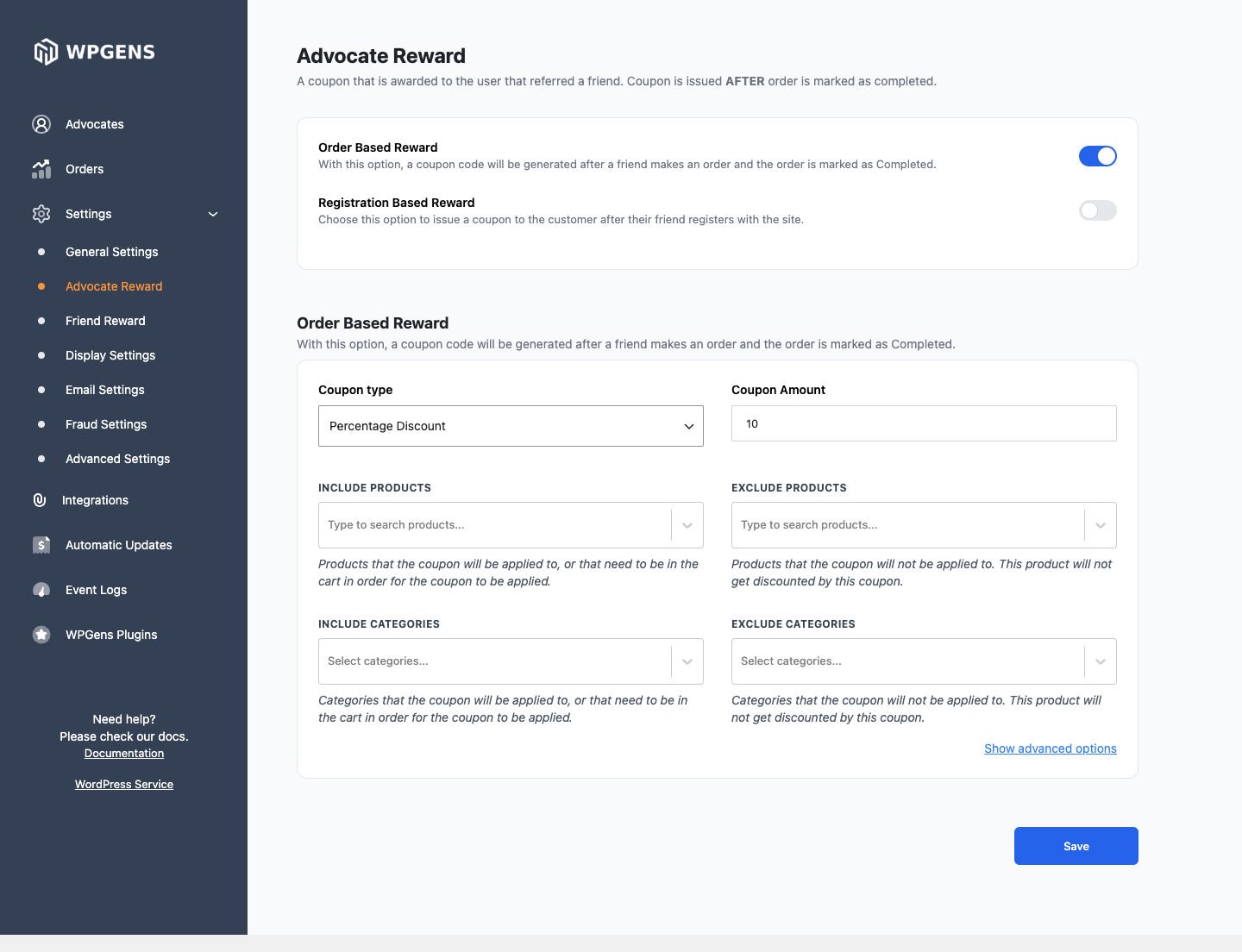
Each reward is a new single-use WooCommerce coupon with a RAF- code that only works for the advocate’s email address. You don’t need to create anything in Marketing → Coupons for this.
Step 3: Create the friend’s discount coupon
The friend’s first-purchase discount uses one shared WooCommerce coupon that you create.
- Go to Marketing → Coupons → Add coupon.
- Enter a code, for example
friend10. - On the General tab, set Discount type to Percentage discount and Coupon amount to
10. - On the Usage limits tab, leave Usage limit per coupon empty.
- On the Usage restriction tab, leave Allowed emails empty.
- Click Publish.
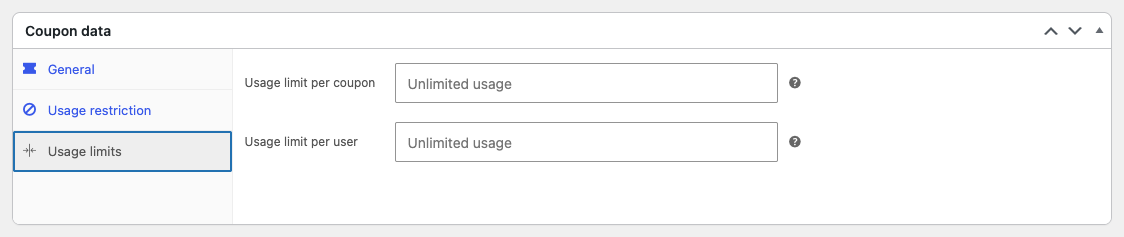
This coupon is shared by every referred friend. If you set a usage limit or an allowed email, the discount stops working for everyone after the first use or for anyone not on the list. The plugin’s fraud checks already stop customers from using it twice.
Step 4: Turn on the friend’s discount
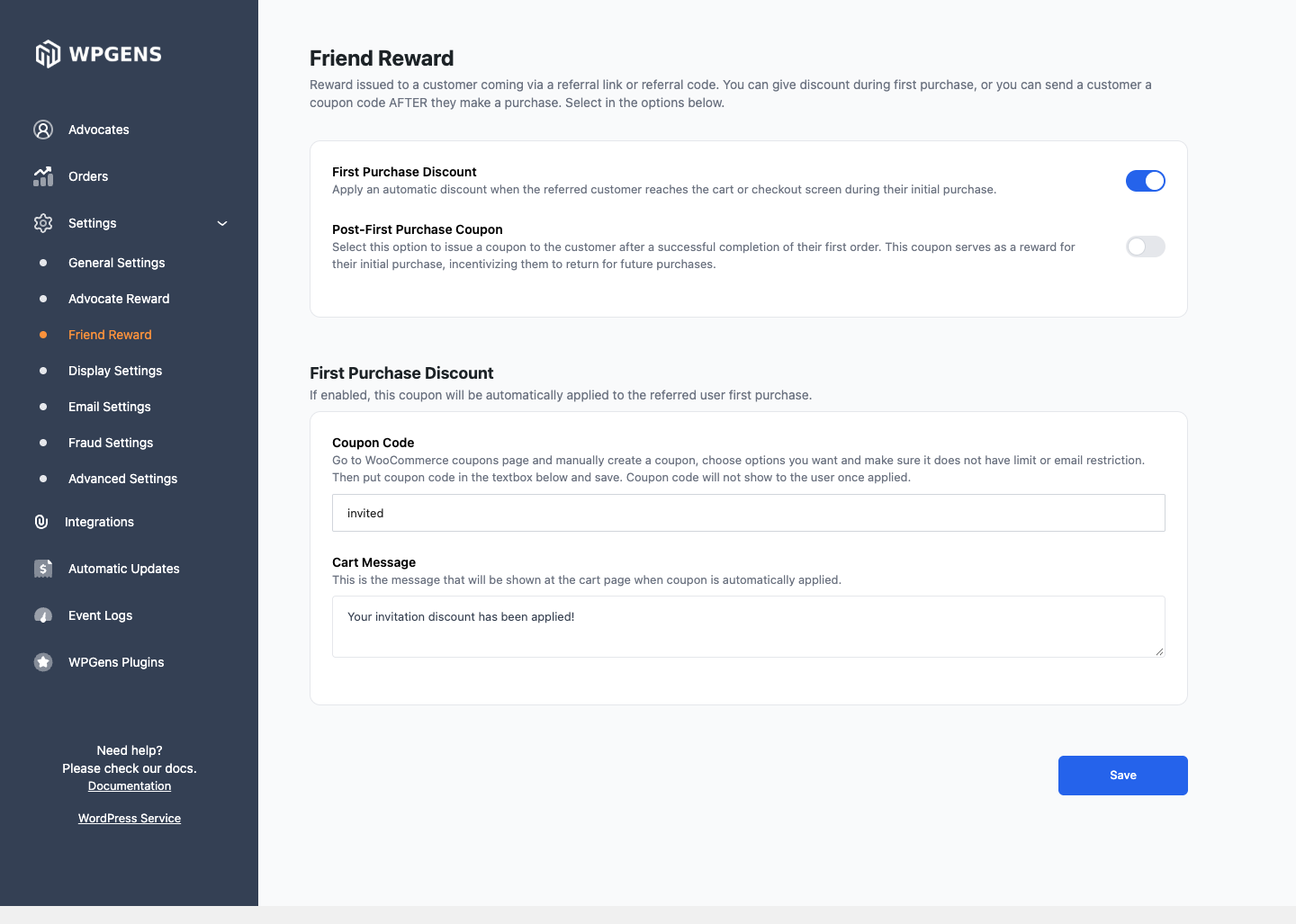
- Go to Settings → Friend Reward.
- Turn on First Purchase Discount.
- In Coupon Code, enter the code from step 3, for example
friend10. - Optionally edit Cart Message, the notice shown when the discount is applied.
- Click Save.
Step 5: Decide where customers see their link
Every logged-in customer already has a Refer a Friend tab in My Account and a tab on each product page. To change this, go to Settings → Display Settings:
- Turn on Show on Thank You page to show the link straight after checkout, which is when customers are most likely to share.
- Set Referral landing page if you want links to open a specific page, such as your shop, instead of the homepage.
- Turn on Hide on Product Tabs if you don’t want the referral tab on product pages.
For a dedicated referral page, add the [WOO_GENS_RAF_ADVANCE] shortcode to any page. See Refer a Friend shortcodes.
Step 6: Check emails and fraud settings
- Go to Settings → Email Settings. Under Test Emails, enter your address in Test Email Address and click Test Coupon Email, then the other test buttons, to check that the emails arrive and look right.
- Go to Settings → Fraud Settings. Leave the fraud rules on. Enter a Fraud email address if alerts shouldn’t go to the site admin email.
Step 7: Give existing customers a referral code
Customers get a code the first time they see their referral link. To create codes for everyone now, for example before an email announcement:
- Go to WooCommerce → Status → Tools.
- Find Refer a friend – Create missing referral links. and click Create referrals.
If Hide referral link for users without any orders is on in General Settings, this tool skips customers without orders. Turn the setting off first if you want codes for everyone.
Check it worked
Run a real referral before you announce the program. Test your referral program takes about 10 minutes and shows you each step from the customer’s side. Then announce the program by email, on your site and on social media.