Refer a Friend sends four emails. They’re WooCommerce emails, so they use your WooCommerce email design and you edit them in the same place as your order emails.
The four emails
| Email in WooCommerce | Who gets it | When | Turn it on or off |
|---|---|---|---|
| RAF: Advocate Coupon | The advocate | Their friend’s order reaches the reward status, or the friend registers with Registration Based Reward. | Enable in the WooCommerce email |
| RAF: Friend Coupon | The friend | Their first order reaches the reward status, if Post-First Purchase Coupon is on. | Enable in the WooCommerce email |
| RAF: Reminder | A customer after their first order | After the order reaches the reward status, plus any delay you set. | Send Referral Program Reminder Email in Email Settings. See Reminder email. |
| RAF: Share with a Friend | Friends the advocate invites | When the advocate uses the share by email form. | Hide share via email option in Email Settings. See Share via email. |
Disable sending of emails in Settings → Email Settings stops both coupon emails. It doesn’t affect the reminder or share emails. Coupons are still created; customers find them in My Account → Refer a Friend.
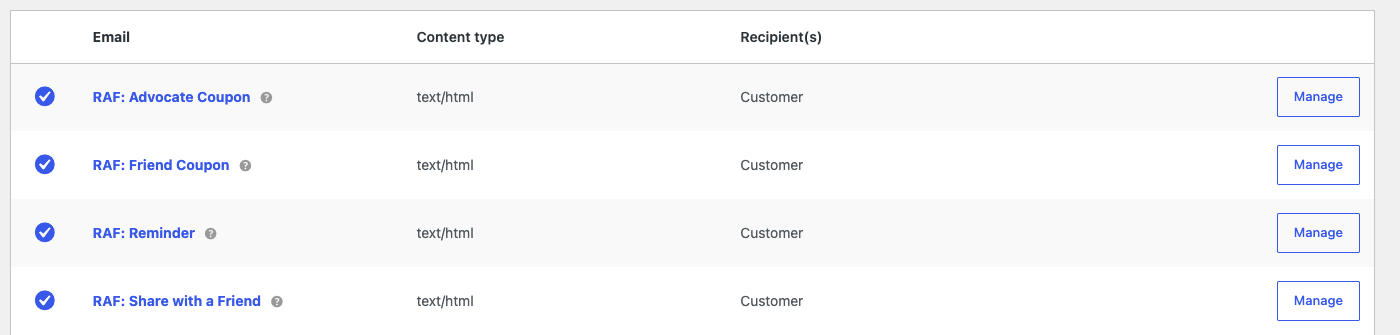
Edit an email
- Go to WooCommerce → Settings → Emails.
- Click Manage next to the RAF email.
- Change any of the fields below.
- Click Save changes.
| Field | What it does |
|---|---|
| Enable | Sends the email. |
| Image URL | An optional image at the top of the email. |
| Subject | The subject line. |
| Email heading | The large text at the top of the email. |
| Email content | The main text. HTML is allowed. |
The logo, colors and footer come from the design settings at the bottom of WooCommerce → Settings → Emails, like your other WooCommerce emails.
You’ll also find shortcut buttons, such as Edit Advocate Coupon Email in WooCommerce, in WooCommerce → Refer a Friend → Settings → Email Settings.
Placeholders
Use these in the subject, heading and content. Type them with double curly braces.
| Placeholder | Advocate Coupon | Friend Coupon | Reminder | Share with a Friend |
|---|---|---|---|---|
{{name}} |
Advocate’s name | Friend’s name | Customer’s name | Name of the person sharing |
{{coupon_code}} |
Reward coupon code | Reward coupon code | ||
{{order_amount}} |
Friend’s order total | Friend’s order total | ||
{{referral_code}} |
Customer’s referral code | Sharer’s referral code | ||
{{referral_link}} |
Customer’s referral link | Sharer’s referral link | ||
{{friend_name}} |
Name the sharer entered for the friend |
The coupon emails also include a Shop Now button that links to your Referral landing page.
Send test emails
- Go to WooCommerce → Refer a Friend → Settings → Email Settings.
- Under Test Emails, enter your address in Test Email Address.
- Click Test Share Email, Test Coupon Email, Test Friend Coupon Email or Test Reminder Email.
- You should see “Email sent. Check your mailbox.”
Test emails use sample data, such as the coupon code RAF-TEST-10. If they don’t arrive, see Emails not arriving.
Change the email templates
To change the layout beyond these fields, copy a template from the plugin’s templates/emails/ folder to wpgens-raf/emails/ in your child theme, and edit the copy. See Edit template files.