Sometimes a friend buys without the referral being tracked, for example on a different device. Or a genuine referral is flagged by the fraud checks. You can fix both from the order screen in the Refer a Friend Data box.
Add a referral to an order
- Find the advocate’s referral code under WooCommerce → Refer a Friend → Advocates, or on their user profile.
- Open the friend’s order under WooCommerce → Orders.
- In the Refer a Friend Data box, which says No referral data., enter the code in the text field.
- Click Update.
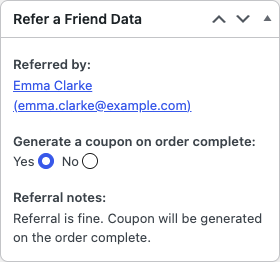
The box now names the advocate, with the note “Referral was added manually. Coupon will be generated on the order complete.”
Manually added referrals skip the fraud checks. If the code doesn’t belong to anyone, nothing is saved and the box still says No referral data.
Create the reward
The reward is created when the order changes to your Generate Referral Reward On status.
- The order isn’t at that status yet: nothing else to do. The coupon is created when it gets there.
- The order is already at that status: change the order to another status, such as Processing, click Update, then change it back and click Update again.
Only do the status change once. Every time an order enters the reward status, another coupon is created.
The friend doesn’t get a discount on an order that’s already been placed. If you want to give them something, create a coupon for them under Marketing → Coupons.
Override the fraud check
When the fraud checks stopped a reward, the box shows the reason, such as “Potential Fraud Detected…”, and Generate a coupon on order complete: set to No.
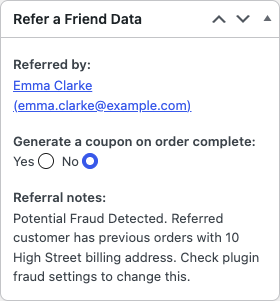
- Check the reason. Make sure the referral is genuine, for example two different people at the same address.
- Set Generate a coupon on order complete: to Yes.
- Click Update.
- If the order is already at your reward status, change the status and back, as described above.
Setting it to No works the other way: it stops the reward for a referral you don’t want to pay out.
Check it worked
After the order reaches the reward status, a new RAF-… coupon for the advocate appears under Marketing → Coupons. Its description mentions the order number.