Referral programs attract people who refer themselves to collect rewards. Refer a Friend checks every referral automatically, so rewards only go to advocates who bring in genuinely new customers. This page explains the checks and the settings at WooCommerce → Refer a Friend → Settings → Fraud Settings.
What’s checked
The plugin compares the friend’s order with every earlier order in your store, not only the advocate’s orders. A referral is flagged when an earlier order has the same:
| Check | Compares | Turned off by |
|---|---|---|
| The billing email, or the logged-in customer’s earlier orders | Disable Email check | |
| IP address | The IP address the order was placed from | Disable IP check |
| Phone | The billing phone number, exactly as typed | Disable Phone Number check |
| Address | The first billing address line, exactly as typed | Disable Street Address check |
Earlier orders count whatever their status, including Pending payment and Cancelled. Only Failed, draft and trashed orders are ignored.
A customer can also never use their own link or code. The plugin ignores it silently.
Disable Email check turns off all four checks, not only the email check. With it on, existing customers get the friend discount every time they use a link. Only turn it on while you test.
What happens to a flagged referral
The checks run twice.
In the cart and at checkout, the friend discount is removed if the friend is an existing customer, with the message “The coupon has been removed from your cart. You are an existing customer and are not entitled to a referral discount.” See Referral discount removed at checkout.
When the order is placed, the result is saved on the order. A flagged order:
- Doesn’t earn the advocate a reward, and doesn’t count towards their referrals.
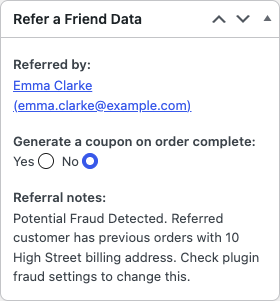
- Shows the reason in the order’s Refer a Friend Data box, for example “Potential Fraud Detected. Referred customer has previous orders with … ip address. Check plugin fraud settings to change this.”
- Sends an alert with the subject “Refer a friend – Potential fraud detected for a new referral” to Fraud email address, or to your WordPress admin email if that’s empty.
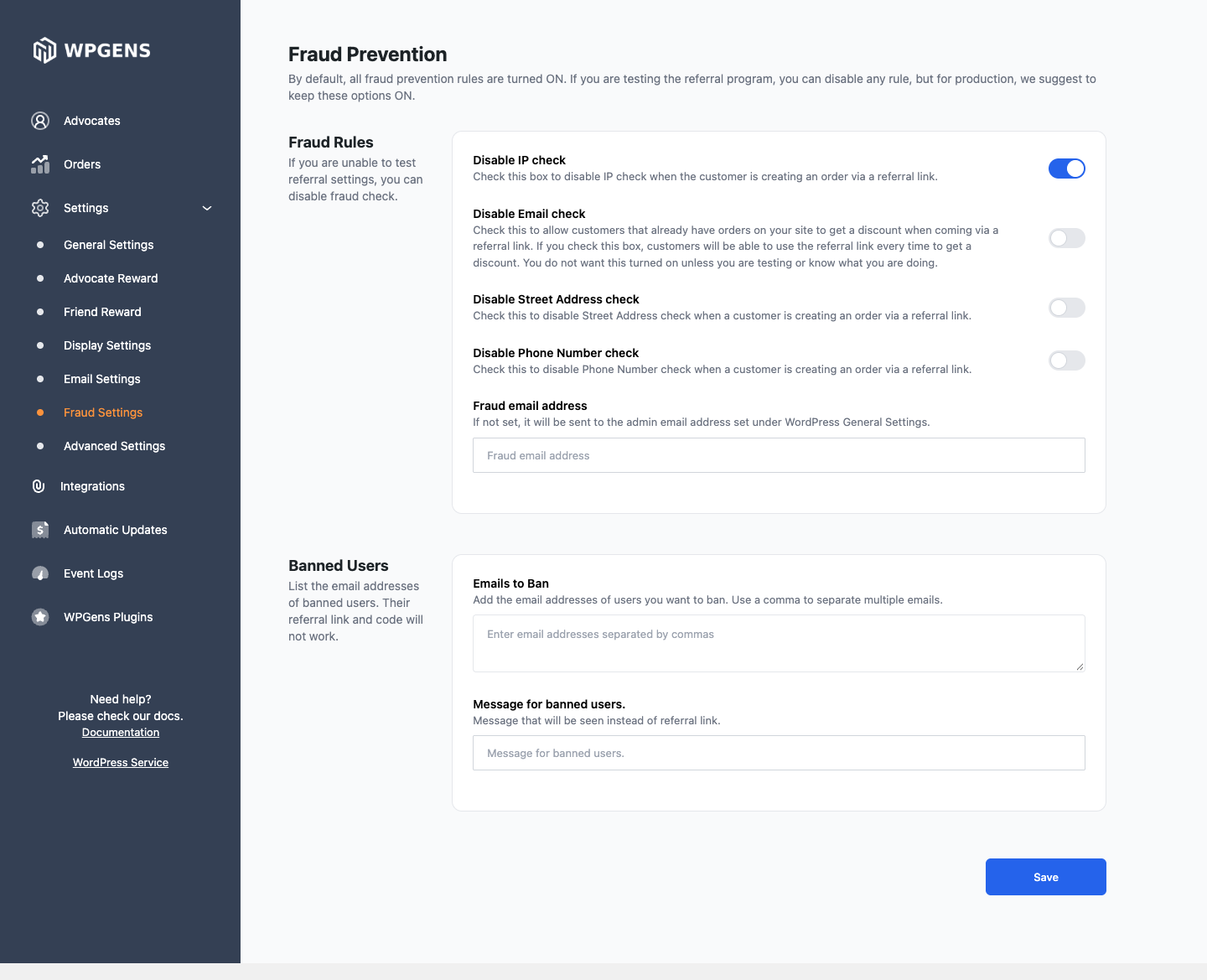
Fraud settings
| Setting | What it does | Default |
|---|---|---|
| Disable IP check | Stops comparing IP addresses. | Off |
| Disable Email check | Lets existing customers get the friend discount, and turns off all four checks. | Off |
| Disable Street Address check | Stops comparing billing addresses. | Off |
| Disable Phone Number check | Stops comparing phone numbers. | Off |
| Fraud email address | Where fraud alerts go. | Empty (admin email) |
| Emails to Ban | Advocates who can’t refer anyone. Separate emails with commas. | Empty |
| Message for banned users. | What banned advocates see instead of their link. | Empty |
When to turn off a check
| Your situation | Consider turning off |
|---|---|
| Customers often order from the same office, school, shared Wi-Fi or mobile network. | Disable IP check. This is the check most likely to flag genuine friends. |
| Many customers share an address, such as a university, military base or parcel locker. | Disable Street Address check |
| Customers rarely give a phone number, or share a company phone. | Disable Phone Number check |
| You’re testing on your own computer. | Temporarily Disable IP check. Use a new email, phone and address for each test order. See Test your referral program. |
Keep the email check on in a live store.
Ban an advocate
- Go to Settings → Fraud Settings.
- Add the advocate’s account email to Emails to Ban.
- Optionally, set Message for banned users.
- Click Save.
Banned advocates see the message instead of their link and code. Their links and codes stop giving friends a discount, and new referrals don’t earn them a reward. Coupons they already have keep working. Delete them under Marketing → Coupons if needed.
Handle a flagged order
- Open the order and read the reason in Refer a Friend Data.
- If the referral is genuine, set Generate a coupon on order complete: to Yes and click Update.
- If the order already has your reward status, change it to another status and back.
See Assign a referral to an order manually for details.
Registration rewards aren’t checked
With Registration Based Reward, the advocate’s coupon is created when the friend creates an account, before there’s an order to check. None of these checks apply. See Advocate reward settings.