Last updated
The Conversions card in Revenue First Analytics has a User tab that lists every visitor in the selected date range and a Converted tab that lists customers and form leads. Click a row to open the visitor timeline: each page viewed, each event, each order and each form submission, in order. The Online tile at the top of the dashboard counts visitors active in the last five minutes.
Who is online right now?
The Online tile in the metrics row counts the different visitors who loaded a page in the last five minutes. It ignores the date range and filters. It loads with the other tiles and updates when you click Refresh or change the range or a filter; it does not tick on its own.
Logged-in administrators are excluded from tracking by default, so you will not see yourself in the count. You can change this in Settings.
What does the User tab show?
The User tab lists every visitor with at least one session in the date range, most recent first, 50 per page with Previous and Next buttons. A session is a run of pageviews by one visitor that ends after 30 minutes without activity.
| Column | Meaning |
|---|---|
| Visitor | The customer name if the visitor ever placed an order, otherwise Anonymous, with a Customer or Visitor badge. |
| Channel | The channel of the visitor’s sessions in the range. |
| Source | The referring site, or the channel when there was no referrer. |
| Pages | Pageviews in the range. |
| Sessions | Sessions in the range. |
| Last seen | Time since the last activity, for example “3h ago”. |
The list follows the date range but ignores filters. Click a row to open the timeline.
What does the Converted tab show?
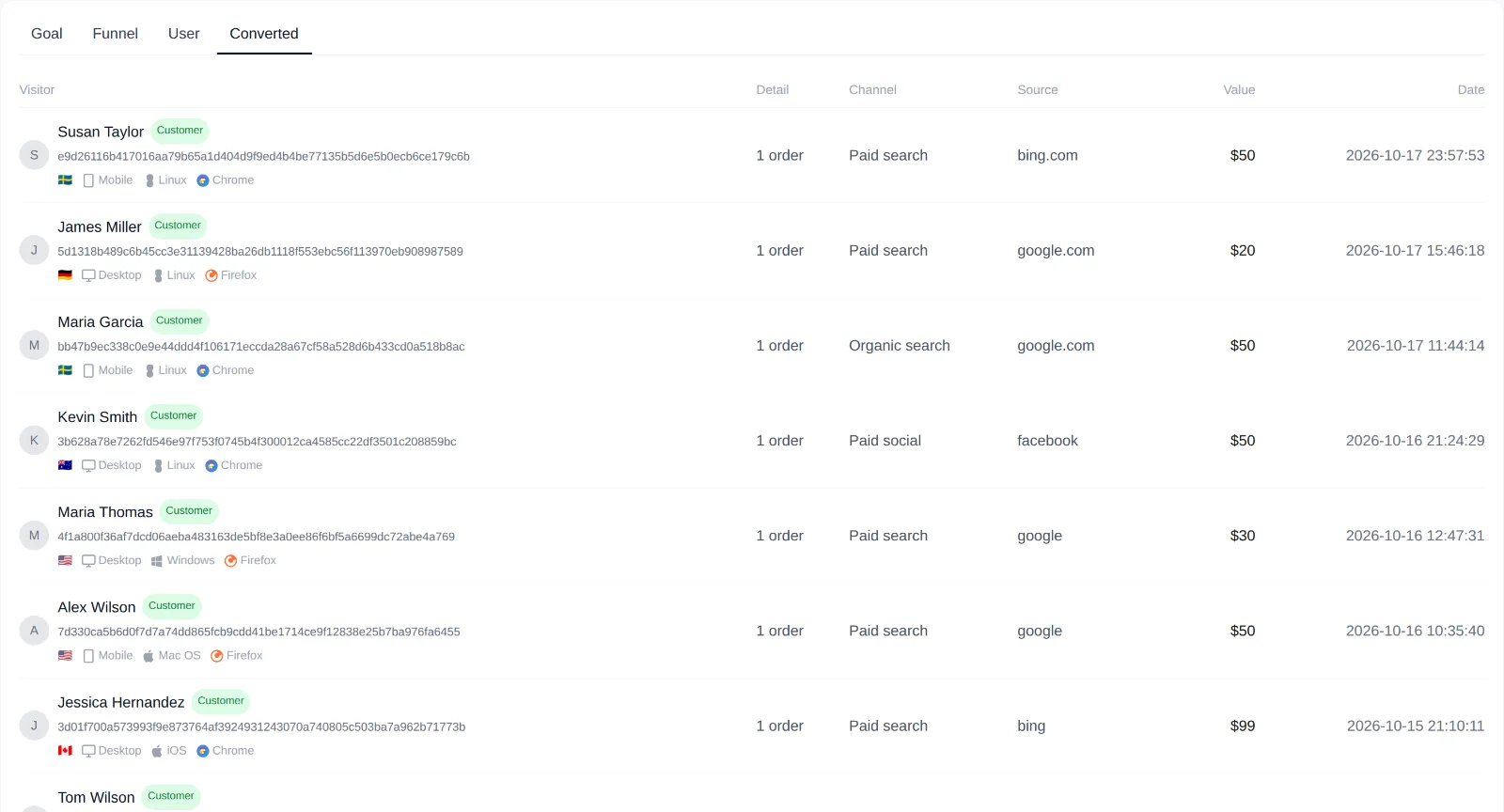
The Converted tab lists the range’s conversions, newest first. When it contains both purchases and form submissions, All, Purchases and Leads pills appear above the table.
- Visitor: name, a Customer or Lead badge, and the country flag, device, operating system and browser.
- Detail: number of orders for a customer, or the form name for a lead.
- Channel and Source: the first-touch channel and referrer saved with the conversion. First touch is the buyer’s first known visit; see How Sales Are Attributed to Traffic Sources.
- Value: total amount for a customer; a dash for leads.
- Date: date of the latest conversion in the row.
Purchases are grouped per customer, so a row can cover several orders. Orders with no tracked visit are listed one per order with the channel Unattributed and cannot be opened. A customer row opens the visitor timeline; a lead row opens the lead details view.
What does the visitor timeline show?
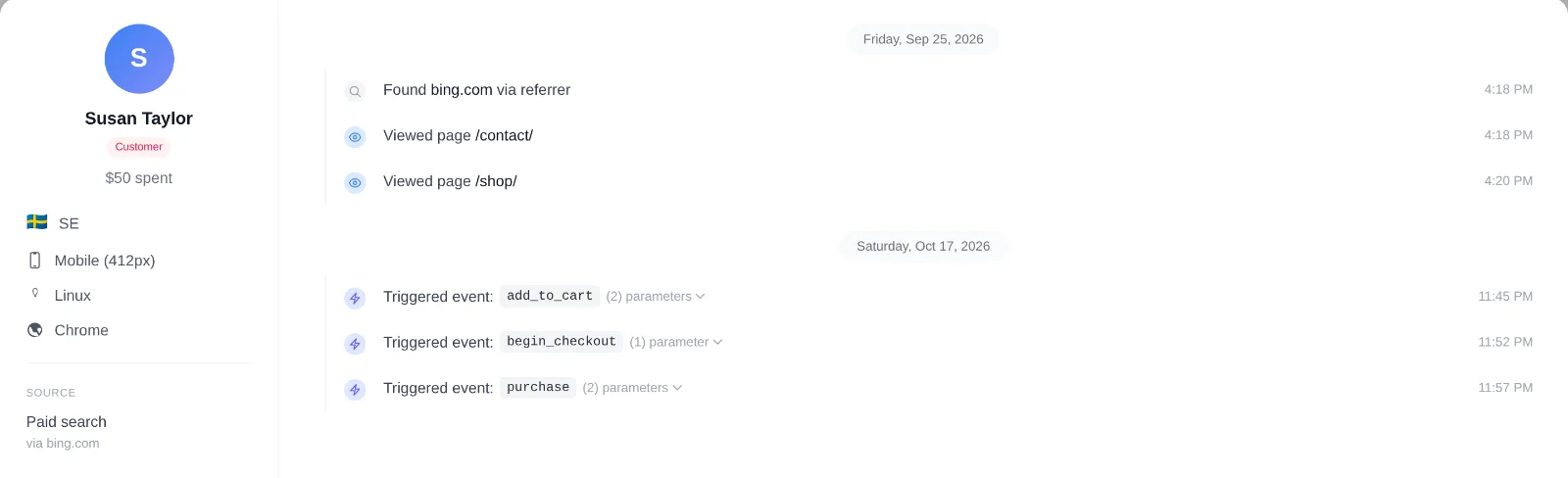
The timeline opens from the bottom of the screen. The left column is the profile: name or Anonymous, the Customer or Visitor badge, total amount spent, country, device with screen width, operating system, browser, and under Source the channel of the first session with its referrer host.
The right column lists everything recorded for this visitor, grouped by day, oldest first, with three kinds of entries:
- Found example.com via referrer: shown once before the first pageview, when it had a referrer.
- Viewed page /path: one line per pageview.
- Triggered event: name: one line per event, with a “(n) parameters” toggle that expands its parameters and values.
| Event | Recorded when | Parameters |
|---|---|---|
product_view, category_view, tag_view | WooCommerce product, category or tag page loads | product_id, category_id or tag_id |
add_to_cart | Product added to the cart (WooCommerce or EDD) | product_id, product_name, quantity, price |
begin_checkout | Checkout page viewed | cart_total, item_count |
purchase | Order reaches the conversion status | order_id, platform, total, currency, products, item_count |
form_submit | Supported form submitted | form_id, form_name, platform, customer_email, customer_name |
scroll_25 to scroll_100 | Visitor scrolls past 25, 50, 75 or 100% of a page | depth |
scroll_goal | Element with data-rfa-scroll-goal comes into view | label |
| Your own events | data-rfa-goal click or window.rfa() call | Whatever you pass |
Custom events are described in Tracking Button Clicks and Custom Events. The timeline holds the 500 most recent pageviews and 500 most recent events, in your browser’s timezone.
What does the lead details view show?
Clicking a lead in the Converted tab opens a Lead submission panel with the form name, the submitter’s Name and Email when captured, the Submitted date and time, and the Page the form was on. View full visitor journey opens that visitor’s timeline. Other submitted fields, such as the message, are never stored. See Tracking Form Submissions and Leads.
How is a visitor identified in each tracking mode?
A visitor’s identity depends on the tracking mode chosen in Settings (Privacy mode, Consent mode or Full tracking), explained in Choosing a Privacy Mode.
| Mode | Visitor ID | What you see in these views |
|---|---|---|
| Privacy mode, and Consent mode before consent | A hash of a daily secret salt, the site domain, the IP address and the User-Agent. Nothing is stored on the device; the IP is never stored. | The same person is a new Anonymous visitor every day. A timeline covers one day, and an order is linked to its visit only on the same day. |
| Consent mode after statistics consent | A random _rfa_vid cookie, valid for one year. | Timelines span days and visits; the visit in which consent was given is moved to the new ID. |
| Full tracking | The _rfa_vid cookie for every visitor. | Timelines span days and visits from the first pageview. |
Which personal data appears, and when?
| Data | Where it appears | When |
|---|---|---|
| Customer name | User tab, Converted tab, timeline profile | For every conversion, in all modes; it comes from the order. Removed from conversions older than the data retention period. |
| Customer email | Not shown as an address | Only a one-way hash is stored, used for GDPR requests and to link repeat purchases. |
| Lead name and email | Converted tab, lead details view, the form_submit event in the timeline | Only when the visitor was identified at submission: Full tracking, or Consent mode after statistics consent. Otherwise the fields stay empty and the row shows a dash. |
| Country, device, OS, browser, screen width | Everywhere | In all modes; the country comes from a local database lookup. |
| Event parameters | Timeline | Whatever your custom events send; keep personal data out. |
All of this lives in your own database and is covered by WordPress’s export and erase tools and the plugin’s Data Subject Requests panel. See Cookies, Data Stored and Data Retention and Handling GDPR Access and Erasure Requests.