Last updated
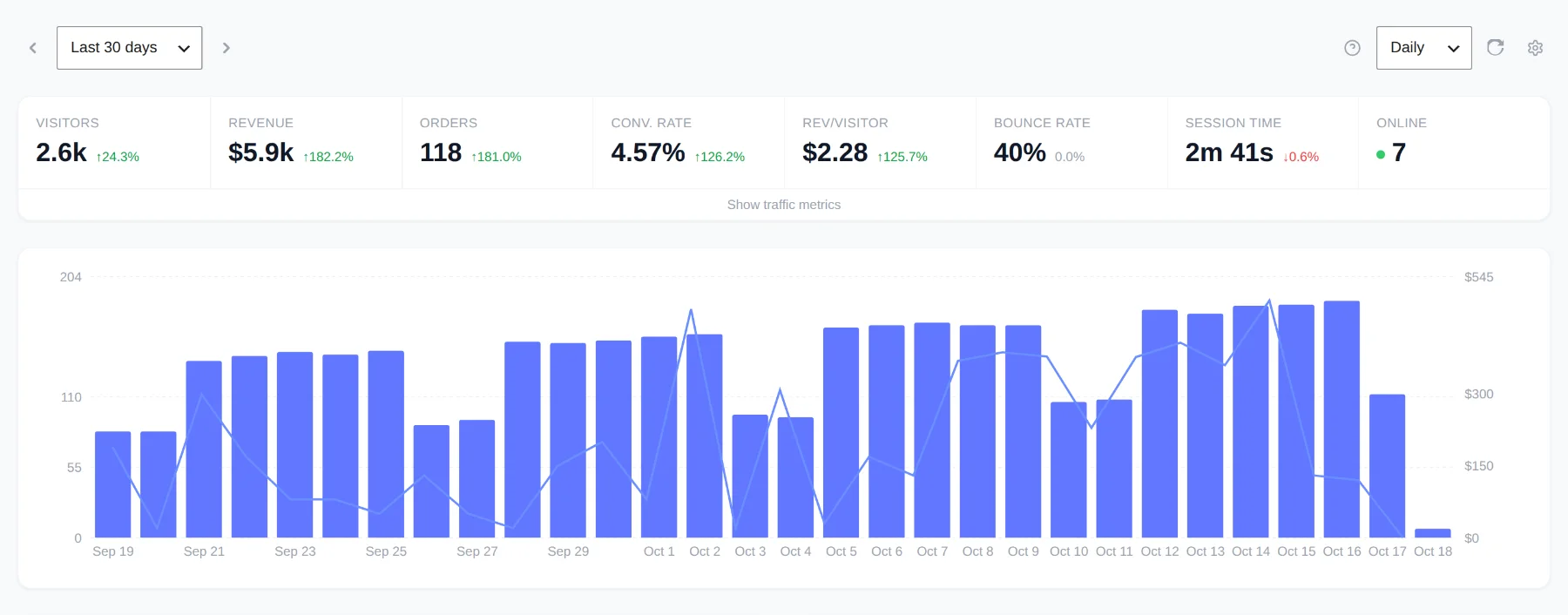
The Revenue First Analytics dashboard (the Rev Analytics screen in your WordPress admin) shows one date range at a time: a row of metric tiles with the change against the previous period, a chart of visitors and revenue, and report cards for traffic sources, products, geography, pages, technology and conversions. Every number comes from your own database, and clicking any row in a card filters the whole screen.
How do you choose a date range?
The date range selector sits at the top left of the dashboard. Open the dropdown and pick one of these options:
- Last 7 days, Last 30 days (the default), Last 90 days and Last 12 months. Each preset ends today and includes today.
- Custom range: opens a small panel with From and To date fields and an Apply button. The end date cannot be in the future. A range longer than three years is shortened to the last three years before the end date.
The arrows on either side of the selector move the range backwards or forwards by its own length, so with Last 7 days selected the left arrow shows the 7 days before. Days follow the timezone of your WordPress site, not UTC. Clicking a bar in the chart narrows the range to that single day.
What does each metric tile mean?
A few terms first. A pageview is one page load (or one in-page navigation in a JavaScript app) recorded by the tracking script. A visitor is one person as far as the plugin can recognize them, which depends on the tracking mode you chose (see Choosing a Privacy Mode). A session is a run of pageviews by one visitor; it ends after 30 minutes without activity. A conversion is a WooCommerce order or an Easy Digital Downloads payment that reached the order status you picked in Settings (see How Sales Are Attributed to Traffic Sources).
| Tile | How it is calculated |
|---|---|
| Visitors | Number of different visitors with at least one pageview in the range. |
| Revenue | Sum of all conversions recorded in the range, after refunds and cancellations have been taken off. Shown with your store currency symbol. |
| Orders | Number of conversions recorded in the range (WooCommerce orders and EDD payments). |
| Conv. rate | Orders divided by Visitors, as a percentage with two decimals. |
| Rev/visitor | Revenue divided by Visitors. |
| Bounce rate | Share of sessions with a single pageview for which the tracker never reported time on page or scroll depth. |
| Session time | Total time on page across all sessions divided by the number of sessions. Time counts only while the browser tab is visible, up to 30 minutes per page. |
| Online | Different visitors with a pageview in the last 5 minutes. It ignores the date range and filters. |
| Total visits | Sessions that started in the range. |
| Total pageviews | Pageviews recorded in the range. |
| Views/visit | Total pageviews divided by Total visits. |
Revenue, Orders, Conv. rate and Rev/visitor appear only when WooCommerce or Easy Digital Downloads tracking is enabled; without a store the row shows Visitors, Bounce rate, Session time and Online.
Show traffic metrics
Total visits, Total pageviews and Views/visit are hidden by default. Click Show traffic metrics under the tiles to reveal them, and Hide traffic metrics to collapse them again.
How does the comparison with the previous period work?
Every tile except Online shows a percentage with an arrow next to its value. It compares the current range with the period of the same length that ended the day before the range started. With Last 30 days selected, the comparison period is the 30 days before that. The same applies to custom ranges.
Green means up and red means down, except for Bounce rate, where the colors are inverted because lower is better. When the previous period had no data, the change reads 100% if the current period has any, and 0% otherwise.
What does the main chart show?
The chart under the tiles plots two series. Bars show Visitors per bucket on the left axis. The line shows Revenue on the right axis and appears only when a store is enabled. Hover a bucket to see its date, Visitors, Revenue and Orders.
The dropdown at the top right switches the buckets between Daily, Weekly and Monthly. Last 7 days and Last 30 days open as daily, Last 90 days as weekly and Last 12 months as monthly; you can change this at any time. Weeks start on Monday, months are calendar months, and buckets follow your site timezone. Active filters apply to the chart as well.
Which cards are below the chart?
The cards appear in this order; the first tab of each is open by default.
- Traffic Sources: Channel, Referrer and Campaign. See Channels, Referrers and Campaigns Report.
- Google Search Console: search keywords, shown only after you connect Google Search Console.
- Products: Product, Category and Tag. Shown only when WooCommerce or Easy Digital Downloads tracking is enabled.
- Geography: Country.
- Pages: Pages, Entry Pages and Exit Pages.
- Technology: Browser, OS and Device.
- Conversions (full width): Goal, Funnel, User and Converted. See Visitors, Realtime and the Visitor Timeline.
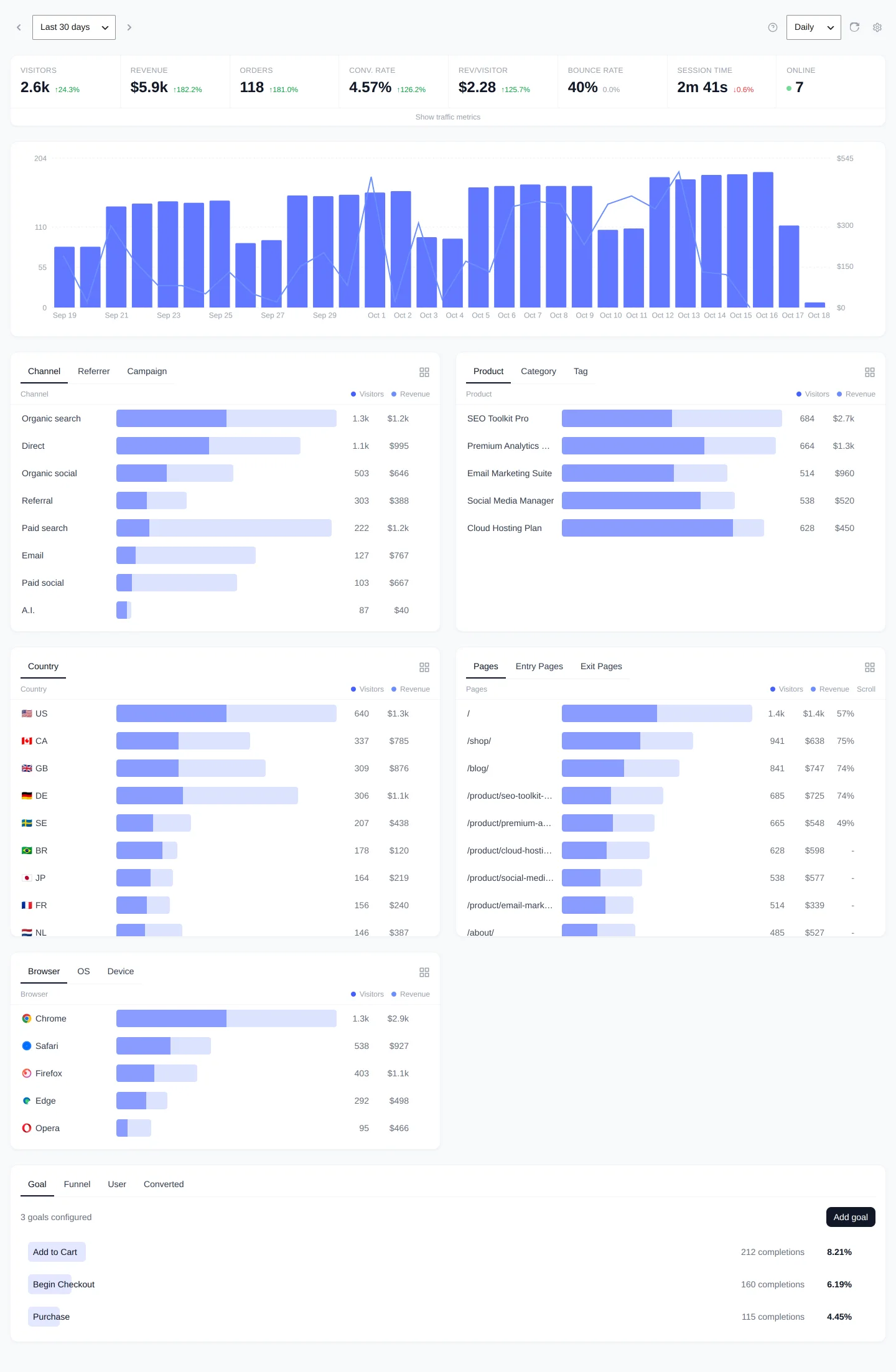
Every breakdown card lists its top 10 rows by visitors. A row shows the name, a bar comparing visitors and revenue with the other rows, and the Visitors and Revenue values. Hover a row for Orders, Revenue/visitor, Conversion rate and Visitor share. The grid icon at the top right of a card (View details) opens a table of up to 50 rows with Orders, CR% and Rev/vis columns that you can sort by clicking a header and search by pressing /. Clicking a row, in the card or in the table, filters the dashboard; see Filtering Reports by Channel, Page, Country or Device.
Where are Refresh, Settings and Help?
The buttons at the top right of the dashboard are, from left to right: the question mark (Goal tracking help), which opens the Goal Tracking Setup guide with the auto-tracked events and the data-rfa-goal attribute; the granularity dropdown; Refresh, which reloads every card with fresh data; and the gear icon, which opens Settings.
In Consent mode, a yellow notice may appear above the tiles saying that no consent banner was detected. It is not an error: visitors are tracked without cookies, so sales are only attributed within the same day. Use its Privacy settings or Dismiss button.