Last updated
The Products card in the Revenue First Analytics dashboard shows visitors, revenue and orders for every product, category and tag in the selected date range. Variations are rolled up into their parent product, and clicking a product filters the whole dashboard to the visitors who bought it, so you can see which channels, campaigns and pages drove that product’s sales.
Where is the Products card?
Open Rev Analytics in the WordPress admin menu. The Products card sits among the breakdown cards below the chart and appears when WooCommerce revenue tracking or Easy Digital Downloads revenue tracking is enabled in Settings. It has three tabs: Product, Category and Tag. Each tab lists up to 50 rows sorted by revenue, then by visitors, for the date range and filters currently active in the dashboard (see Dashboard Overview).
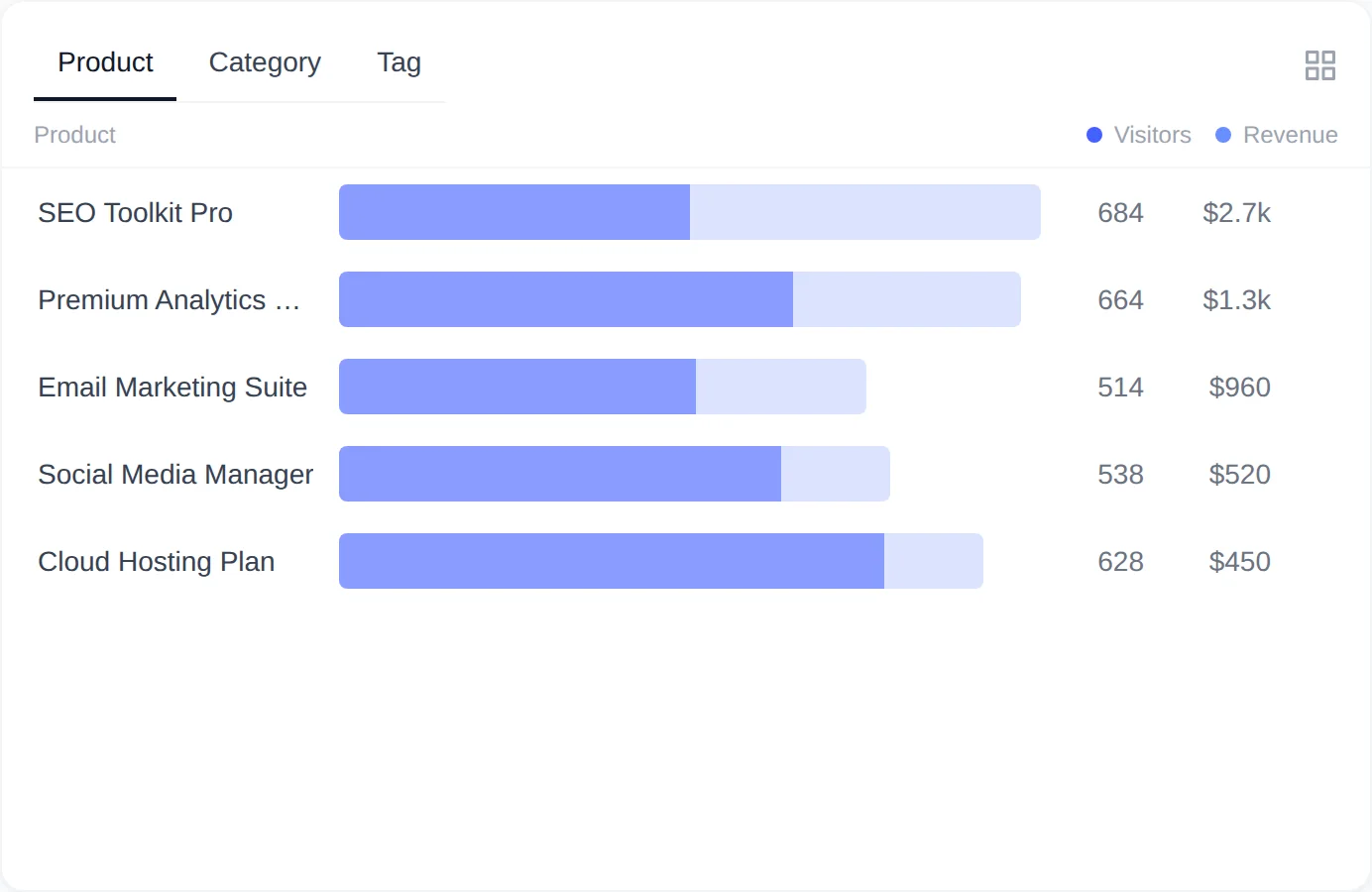
The grid icon in the card’s top right corner (“View details”) opens the full table in a modal with a search box (press / to focus it) and sortable columns.
What does each column mean?
The card itself shows two numbers per row. Hovering a row shows a tooltip with more, and the View details table adds two calculated columns.
| Column | Where | Meaning |
|---|---|---|
| Visitors | Card, tooltip, table | Unique visitors who viewed the product page in the period. On the Category and Tag tabs: visitors to any product in the term plus visitors to the category or tag archive page. |
| Revenue | Card, tooltip, table | Revenue from counted orders containing the product in the period, in your store currency. |
| Orders | Tooltip, table | Number of counted orders containing the product. |
| Revenue/visitor (Rev/vis) | Tooltip, table | Revenue divided by visitors. |
| Conversion rate (CR%) | Tooltip, table | Orders divided by visitors, as a percentage. |
| Visitor share | Tooltip | The row’s visitors as a share of all visitors listed in the tab. |
Product views come from a product_view event the tracker sends with the first pageview of a WooCommerce single product page; category and tag archive views come from category_view and tag_view events. A visitor who opens the same product five times counts once.
How are variations rolled up to the parent product?
Variable products appear as one row. Before building the list, the plugin maps every variation ID to its parent product, so views and revenue of “T-shirt, Blue, L” and “T-shirt, Red, M” are both added to “T-shirt”. If WPML is active, translated products are mapped to the original-language product in the same step, and rows that end up with the same name are merged. Categories and tags are merged across WPML translations the same way.
How is revenue per product calculated?
The source of the revenue figure depends on whether a dashboard filter is active.
- No filter active: revenue comes from WooCommerce’s own order line data. The plugin sums each product’s line revenue across orders whose status counts as a conversion, grouped by the order creation date. Counting statuses follow the Record conversion when order status is setting, plus Completed, which always counts.
- Filter active: revenue comes from the plugin’s own revenue records, which are net of refunds and know which visitor placed each order. Each order’s amount is credited to the product names on that order.
The Orders number is taken from the plugin’s revenue records wherever possible, so it reflects the same conversions as the Revenue and Orders tiles at the top of the dashboard. How orders are recorded, and how refunds and cancellations change them, is covered in How Sales Are Attributed to Traffic Sources and Refunds, Cancellations and Subscription Renewals.
Click a product to filter the dashboard
Rows on the Product tab are filters. Click a product and a chip such as Product: Hoodie appears in the filter bar under the date range. Every card and metric tile now describes only the visitors who bought that product in the period:
- The Visitors, Revenue, Orders and Conv. rate tiles show the buyers of that product, their total spend and how many of their orders there were.
- The Traffic Sources card shows which channels, referrers and campaigns those buyers first came from.
- The Pages, Geography and Technology cards show their entry pages, countries, browsers and devices.
- Click the chip, or click the same row again, to remove the filter.
Rows on the Category and Tag tabs are not clickable filters. For other filter dimensions and how they combine, read Filtering Reports by Channel, Page, Country or Device.
What the report does not show
Keep these limits in mind when reading the card:
- No conversion rate column in the card itself. The card shows Visitors and Revenue. The per-product conversion rate is in the hover tooltip and in the CR% column of the View details table.
- No units sold. Quantities are not displayed; a row counts orders, not items.
- No per-variation rows. Variations are always rolled up to the parent product.
- Visitors without a product page view are not counted as visitors. A buyer who added the product from a category page or a shortcode without opening the product page contributes an order and revenue, but no visitor, which can push the conversion rate above 100% for such products.
On Easy Digital Downloads stores the same card lists downloads, download categories and download tags; see Tracking Easy Digital Downloads Sales for the differences.