Last updated
Revenue First Analytics is a self-hosted WooCommerce analytics plugin that ties every order to the traffic that brought it. It installs like any other WordPress plugin: upload the zip from your wpgens.com account, activate it, and open Rev Analytics in the admin menu. Tracking starts right away. Before you rely on the numbers, decide three things in Settings: the privacy mode, which WooCommerce order status counts as a sale, and whether administrators are excluded from tracking.
Install and activate the plugin
- Download the plugin zip from your purchase history on wpgens.com. The download link is also in your purchase receipt email.
- In WordPress, go to Plugins > Add New > Upload Plugin, choose the zip file and click Install Now.
- Click Activate.
- Open Rev Analytics > Settings (the gear icon in the top bar) and enter your license key in the License & Updates card so you receive updates. See Activating Your License and Updates.
The plugin requires WordPress 6.0 or newer and PHP 7.4 or newer. WooCommerce and Easy Digital Downloads are optional; the plugin detects them automatically, along with the supported form plugins.
Activation creates six tables in your WordPress database (pageviews, sessions, events, revenue, goals and funnels) and schedules a daily cleanup job. If WooCommerce or Easy Digital Downloads is active, it also creates three default goals (Add to Cart, Begin Checkout and Purchase) and one funnel called Purchase Funnel with those three steps. If you install your store plugin later, these defaults are created the next time you save Settings.
Where is the dashboard?
After activation a new top-level menu item called Rev Analytics appears near the top of the WordPress admin menu. It is visible to administrators only. Clicking it opens the dashboard, which takes over the full width of the admin screen.
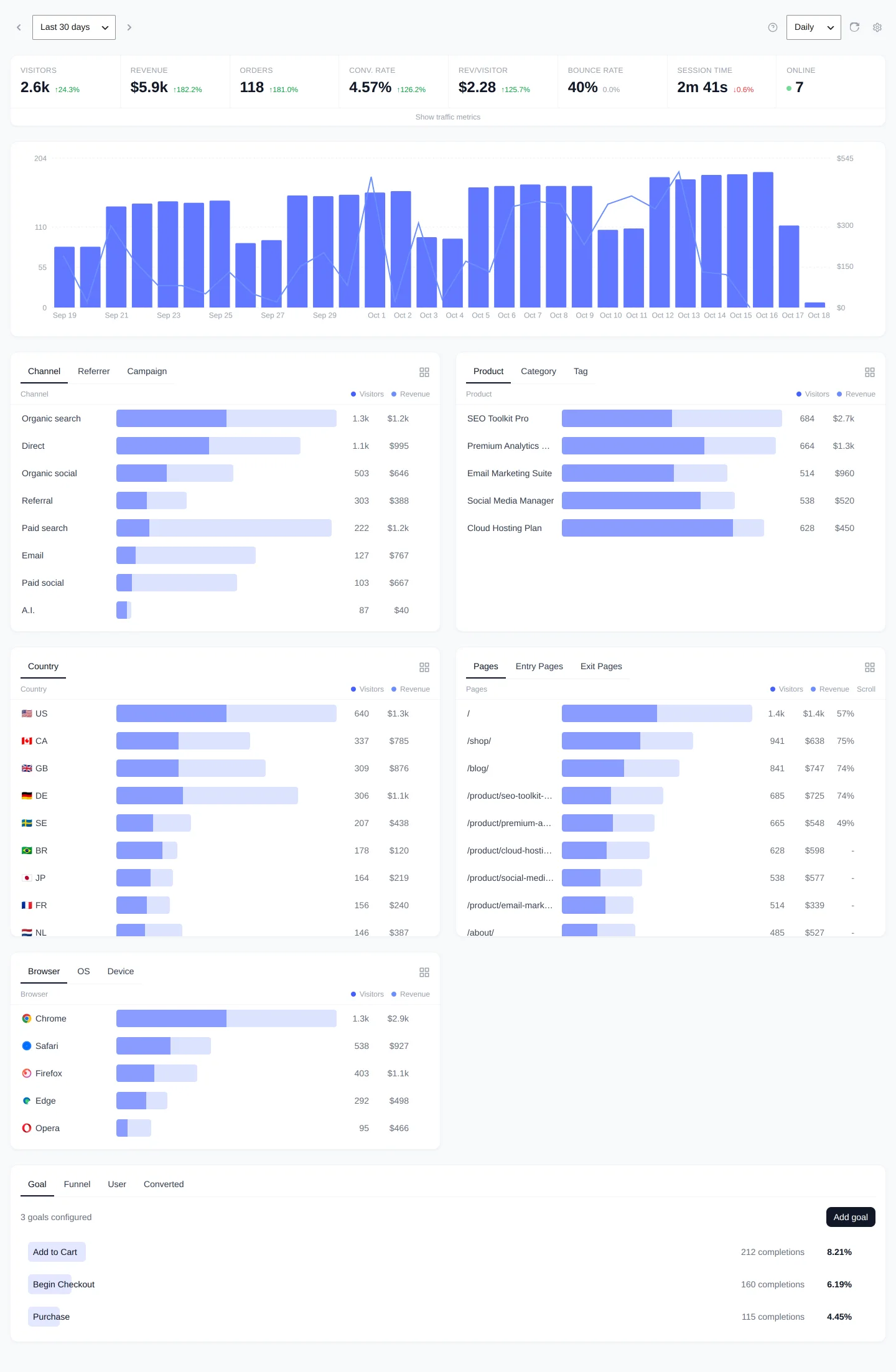
From top to bottom, the first screen shows:
- Top bar: the date range (Last 7 days, Last 30 days, Last 90 days, Last 12 months or a custom range), previous and next period arrows, a Daily, Weekly or Monthly chart granularity, a Refresh button, a question-mark icon that opens the Goal Tracking Setup help, and a gear icon that opens Settings.
- Metric tiles: Visitors, Revenue, Orders, Conv. rate, Rev/visitor, Bounce rate, Session time and Online. The revenue tiles only appear when WooCommerce or Easy Digital Downloads tracking is enabled. Show traffic metrics adds Total visits, Total pageviews and Views/visit.
- Main chart for the selected period.
- Report cards: Traffic Sources (Channel, Referrer, Campaign), Products (Product, Category, Tag, store sites only), Geography (Country), Pages (Pages, Entry Pages, Exit Pages) and Technology (Browser, OS, Device).
- Conversions card with the Goal, Funnel, User and Converted tabs.
On a fresh install you may also see an amber notice above the metrics: No consent banner detected: sales are only attributed within the same day. It appears in Consent mode when no consent plugin is connected. The next section explains what to do about it.
Three settings to decide right away
Open Settings with the gear icon. Each change needs Save changes in the top-right corner.
1. Privacy mode
The Privacy & GDPR card has three options. Privacy mode stores nothing on the visitor’s device and attributes sales only on the day of the visit. Consent mode (the default) works the same until the visitor accepts statistics cookies, then sets a first-party cookie so a sale can be attributed to a visit from days or weeks earlier. Full tracking sets that cookie for every visitor. Read Choosing a Privacy Mode before you decide; if you stay in Consent mode, connect your cookie banner so attribution works across days.
2. Which order status counts as a sale
In the Integrations card, Record conversion when order status is decides when a WooCommerce order is counted as a conversion. The default is Completed. Choose Processing if you want orders counted as soon as payment arrives, or Payment Complete (hook) to count them when the payment gateway confirms payment. Custom order statuses are listed too. Whatever you pick, an order that reaches Completed is always counted, and never twice. Details are in How Sales Are Attributed to Traffic Sources.
3. Admin exclusion
In the General card, Exclude admin users is on by default, so visits by logged-in administrators are not tracked and no Facebook events are sent for them. We recommend leaving it on. Your own logged-in visits therefore never show up in reports; keep that in mind when testing below.
What to expect in the first 24 hours
- Data appears as visitors arrive. Every pageview is written to the database when it happens and reports read those tables directly, so there is no delay. Click Refresh in the top bar to reload the numbers. The Online tile counts visitors who loaded a page in the last 5 minutes.
- Revenue starts with the next order. The plugin captures the visitor at checkout, so only orders placed after activation can be attributed to a visit. An older order that reaches the chosen status later is recorded as Unattributed.
- A daily cleanup job runs at 03:00 UTC through WP-Cron. It deletes raw pageviews, sessions and events older than the Data retention setting (365 days by default).
Verify that tracking works
- Open your site in a private (incognito) browser window so you are not logged in, and view two or three pages.
- Back in the dashboard, click Refresh. The Online tile should show 1, the Pages card should list the paths you visited, and the Traffic Sources card should show one Direct visit.
- For a closer look, turn on Debug mode in the Developer Tools card and save. Then visit your site while logged in as an administrator. A Debug Panel appears in the bottom-right corner with every pageview, duration and event payload, a dataLayer tab and a Session Info tab. With Exclude admin users on, the panel shows what the tracker would send but sends nothing to the server, so your own visits still stay out of the reports. Turn Debug mode off when you are done.
- On a store, place a test order in the private window and move it to the status you chose. The Orders tile and the Converted tab of the Conversions card should show it.
If nothing shows up, see Troubleshooting: No Data, Everything Direct or Missing Orders.
Next steps
- How Revenue First Analytics Works: visitors, sessions, events and where the data lives.
- Revenue First Analytics Settings Explained: every setting with its default.