Last updated
A goal in Revenue First Analytics is an action you want visitors to complete, such as clicking a button, reaching a thank-you page or scrolling to a pricing table. You create goals in the Goal tab of the Conversions card, choosing one of four types: Custom event, Page visit, Scroll depth or Scroll to element. Each goal shows completions and completion rate for the selected date range.
What is a goal and how is it counted?
A goal is a saved rule that matches against the pageviews and events the plugin has already recorded. A visitor is a person the plugin recognizes by a visitor ID, either a daily hash or the _rfa_vid cookie, depending on your tracking mode (see Choosing a Privacy Mode). A completion is one unique visitor who matched the rule at least once in the selected date range. Ten clicks by the same visitor count as one completion.
The completion rate is completions divided by the number of unique visitors who had a pageview in the same date range. Both numbers respect the dashboard date range and any active filters. For details on filters, see Filtering Reports.
Which goal types are available and what do they match?
| Goal type | Field | What counts as a completion |
|---|---|---|
| Custom event | Event name | An event with exactly this name was recorded. Covers events from data-rfa-goal, window.rfa() and the automatic store and form events. |
| Page visit | Target path | A pageview whose path is exactly the value you enter, for example /thank-you/. |
| Scroll depth | Scroll depth (%) | The visitor scrolled at least this far on any page. Only 25, 50, 75 and 100 are recorded, so enter one of those. |
| Scroll to element | Element label | An element marked with data-rfa-scroll-goal="Label" came into view. |
Custom event
The event name must match exactly, including case. The Event name field suggests names the plugin has seen in the last 90 days, which is the easiest way to avoid typos. The automatic events are add_to_cart, begin_checkout, purchase and form_submit; everything else comes from your own markup or JavaScript, as described in Tracking Button Clicks and Custom Events.
Page visit
The Target path is compared with the recorded pageview path using an exact match. The plugin stores the path as the browser sent it, without the domain, query string or fragment. That means /thank-you and /thank-you/ are two different values, and /pricing?plan=pro is recorded as /pricing. The field suggests paths seen in the last 90 days, so pick the one that is already in your data. There is no wildcard or “starts with” matching.
Scroll depth
The tracking script records the deepest point a visitor reached on each page and, when the visitor leaves the page or switches tabs, sends a scroll_25, scroll_50, scroll_75 or scroll_100 event for every threshold passed. A Scroll depth goal of 75 matches the scroll_75 event. The goal is not tied to a page: it completes on whichever page the visitor scrolled that far. A page shorter than the browser window counts as 100 percent.
Scroll to element
Add data-rfa-scroll-goal="Pricing Table" to any element on a page. When at least 10 percent of that element enters the viewport, the script sends a scroll_goal event with the label Pricing Table, once per page load. The Element label in the goal must match the attribute value exactly.
How do I create a goal?
- Open Rev Analytics in the WordPress admin menu and scroll to the Conversions card.
- Select the Goal tab and click Add goal.
- Enter a Goal name, for example “Signed up”.
- Choose a Goal type: Custom event, Page visit, Scroll depth or Scroll to element.
- Fill in the field that appears for that type: Event name, Target path, Scroll depth (%) or Element label.
- Click Create goal. The goal appears in the list right away with its completions for the current date range.
You can have up to 5 goals. When the limit is reached the Add goal button is hidden, and the REST API returns “You can create up to 5 goals.” Delete a goal you no longer need to make room.
How do I read the goals report?
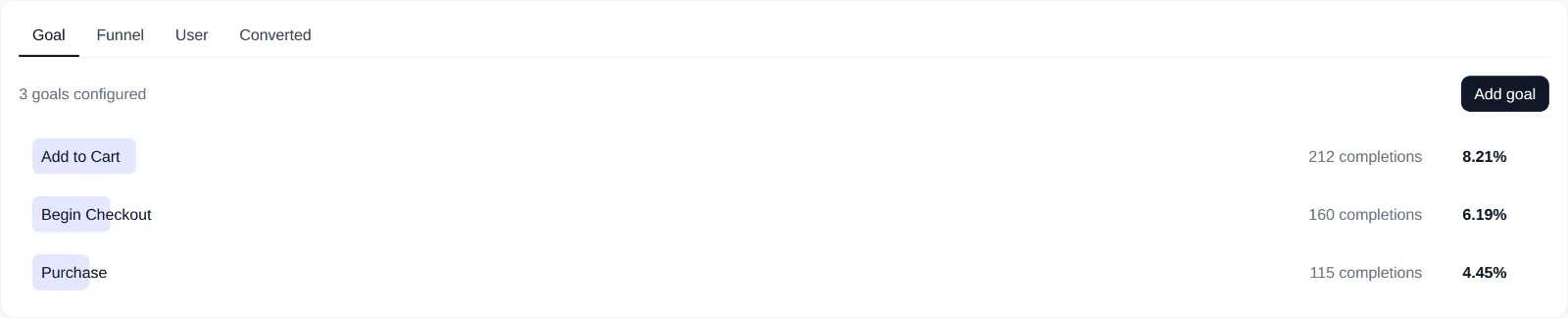
Each row shows the goal name, the number of completions and the completion rate as a percentage. The shaded bar behind the name is the completion rate drawn to scale. Goals are counted only from recorded data, so a goal you create today also shows completions from earlier dates in the selected range, as long as the matching events or pageviews exist.
The Goal tab does not show revenue per goal. To connect revenue to a step in the customer journey, build a funnel; see Building Conversion Funnels. To see which goals a single visitor completed, open their timeline from the User or Converted tab, where every event is listed as “Triggered event”.
Which goals are created automatically?
When WooCommerce or Easy Digital Downloads is active and its revenue tracking integration is enabled in Settings, the plugin creates three Custom event goals if you have no goals yet: Add to Cart (add_to_cart), Begin Checkout (begin_checkout) and Purchase (purchase). This runs on activation and again whenever you save Settings, so a store you enable later still gets the defaults. Existing goals are never overwritten.
No goal is created for form submissions. To count leads, add a Custom event goal with the event name form_submit; see Tracking Form Submissions and Leads.
Can I edit or delete a goal?
Goals cannot be edited. To change a name, type or target, delete the goal and create it again. Hover over a row and click the X on the right (“Delete goal”), then confirm. Deleting a goal removes only the rule, never the underlying events or pageviews, so recreating it brings the same history back.
How do goals relate to funnel steps?
Funnels are built from event names, not from goals. A Custom event goal and a funnel step with the same event name count the same visitors. Scroll depth goals correspond to the scroll_25 to scroll_100 event names, and Scroll to element goals correspond to the scroll_goal event with a label. Page visit goals have no event behind them, so they cannot be used as a funnel step; mark the page’s main section with data-rfa-scroll-goal instead.