Last updated
A funnel in Revenue First Analytics is an ordered list of two or more events, such as add to cart, begin checkout and purchase. The Funnel tab of the Conversions card shows how many visitors completed each step in order within the selected date range, the drop-off between steps and the total conversion rate from the first step to the last.
What is a funnel and how are visitors counted?
Each funnel step is either an event name or a page visit. The report starts with every visitor who completed the first step in the selected date range. For each later step, a visitor is counted only if they completed it at or after the time they completed the previous step. Steps must be completed in order, so a visitor who purchased without an earlier add_to_cart event in the range is not counted in a funnel that starts with add to cart.
Counting is per visitor, not per session. A session is one visit; a visitor can have many. A visitor who added to cart on Monday and purchased on Thursday completes both steps, as long as both days fall inside the date range and the plugin can recognize them as the same visitor. In Privacy mode the visitor ID changes every day, so only same-day journeys connect; in Consent mode (after consent) and Full tracking, journeys connect across days through the _rfa_vid cookie. See Choosing a Privacy Mode.
There is no separate time window: the only limit is the dashboard date range. The dashboard filters (channel, page, country, device) do not apply to funnels.
What is in the default Purchase Funnel?
When WooCommerce or Easy Digital Downloads is active and its revenue tracking is enabled in Settings, the plugin creates a funnel named Purchase Funnel if you have none yet, with three steps:
- Add to Cart, event
add_to_cart - Begin Checkout, event
begin_checkout - Purchase, event
purchase
These events are sent by the plugin itself: add_to_cart when a product is added, begin_checkout once per session when the checkout page is viewed with items in the cart, and purchase once per order. The seeding runs on activation and whenever you save Settings, and never overwrites funnels you created.
Which step types can I use?
Each step row has a type selector with two options. Page visit matches visitors who viewed a page with exactly the path you enter, for example /pricing/, using the same rule as a Page visit goal: the path must match character for character, so the trailing slash matters and query strings are ignored. The path field suggests paths recorded on your site. Event matches an event name. The Event name field suggests names recorded in the last 90 days, including:
- Store events:
add_to_cart,begin_checkout,purchase, plusproduct_view,category_viewandtag_viewfor WooCommerce pages. - Form submissions:
form_submitfrom any supported form plugin. - Your own events from
data-rfa-goalorwindow.rfa(), for examplesignup_click. - Scroll events:
scroll_25,scroll_50,scroll_75,scroll_100, andscroll_goal. When you pickscroll_goal, a Label field appears so the step matches onedata-rfa-scroll-goalelement only.
Use a page visit step when reaching a page is the milestone (pricing page, checkout page, thank-you page). Use an event step when the milestone is an action on the page, such as clicking a button or scrolling to a section. Adding your own events is covered in Tracking Button Clicks and Custom Events.
How do I create a funnel?
- Open Rev Analytics, scroll to the Conversions card and select the Funnel tab.
- Click Add funnel and enter a Funnel name, for example “Signup Flow”.
- Under Steps (min 2), give each row a Step name (the label shown in the chart), choose Event or Page visit, then enter the event name or the page path.
- Click + Add step for more steps. With three or more rows, an X appears to remove one.
- Click Create funnel. Rows missing a name or event are left out, and the button stays disabled until at least two complete rows exist.
Funnels cannot be edited after creation. To change the steps, hover over the funnel in the list, click the X (“Delete funnel”), confirm, and create it again. Deleting a funnel does not delete any events.
How do I read the funnel report?
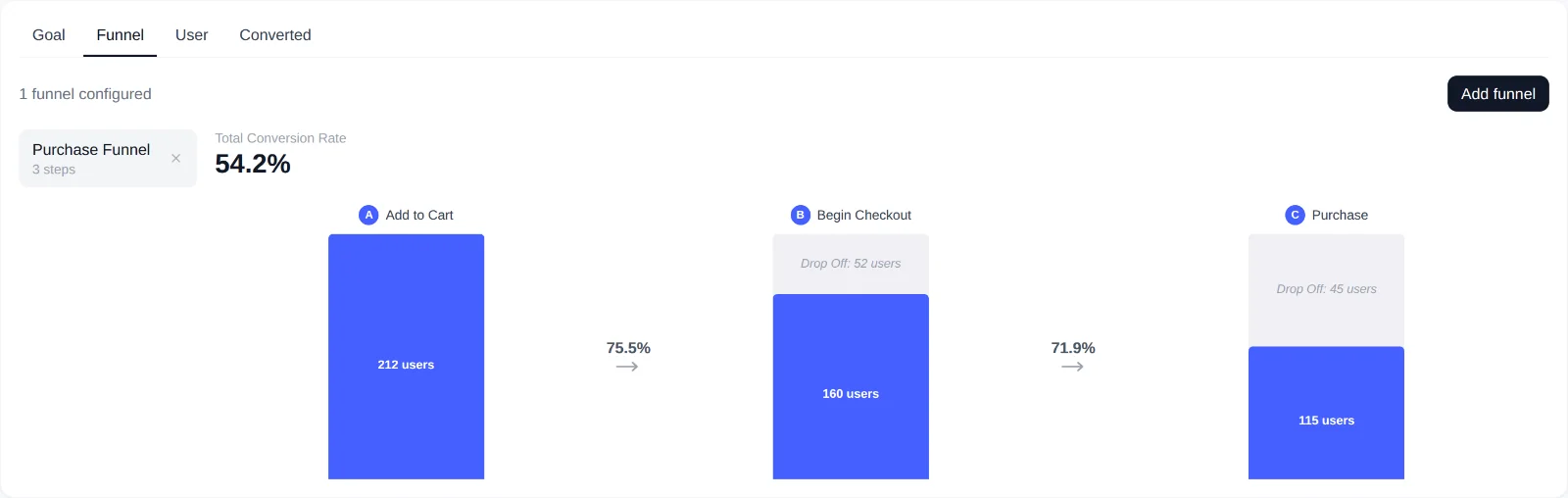
Click a funnel in the list on the left to load it. The chart shows one bar per step, lettered A, B, C, with the number of users (visitors) who reached it. Above the chart, Total Conversion Rate is the last step’s visitors divided by the first step’s. Between bars, the percentage with an arrow is the share of visitors who continued to the next step, and the light area above a bar reads “Drop Off: N users” for the visitors lost since the previous step.
Hover over a bar to see more:
- Dropoff and Conversion from the previous step, and the share “from start”.
- Total value: for
add_to_cartthe sum of price times quantity, forbegin_checkoutthe sum of cart totals, forpurchasethe sum of order totals. Other steps have no value. - Step value per visitor (shown when a store integration is enabled): the share of visitors at this step who bought in the period, multiplied by the average revenue per buyer.
- Top Sources and Top Countries: the three most common sources and countries among the visitors at this step, from their sessions in the period.
Example funnels
| Funnel | Steps | Setup needed |
|---|---|---|
| Store checkout | add_to_cart > begin_checkout > purchase | None, created automatically for WooCommerce and EDD. |
| Pricing page to lead | Page visit /pricing/ > form_submit | None. Form submissions are automatic with a supported form plugin. |
| Product interest to purchase | product_view > add_to_cart > purchase | None for WooCommerce product pages. |
| Signup flow | signup_click > signup | Add data-rfa-goal="signup_click" to the button and call window.rfa('signup') on the success page. |
Limits and caveats
- Order matters. A later step only counts if it happened at or after the previous one.
- Date range is the window. All steps must fall inside the selected range.
- Privacy mode connects same-day journeys only. Multi-day funnels need Consent mode with consent, or Full tracking.
- Filters are ignored. Funnels follow the date range but not the channel, page, country or device filters.
- Excluded administrators never appear in funnels, since their events are not stored.
- Server-side events still count without a pageview. A buyer whose browser blocked the tracking script still produces
add_to_cart,begin_checkoutandpurchaseevents, but with no session their source and country are unknown.
To see the individual journeys behind a funnel, open a visitor from the Converted tab; the timeline is described in Visitors, Realtime and the Visitor Timeline. For single-step conversion rates without ordering, use goals instead: Creating Goals.